Queued Messages View
The Queued Messages view displays all messages that are currently waiting to be sent to trading partners. These messages remain in the queue until they are successfully processed and transmitted. This view allows users to monitor pending messages and manage them if any issues occur.
Understanding the Queued Messages Table
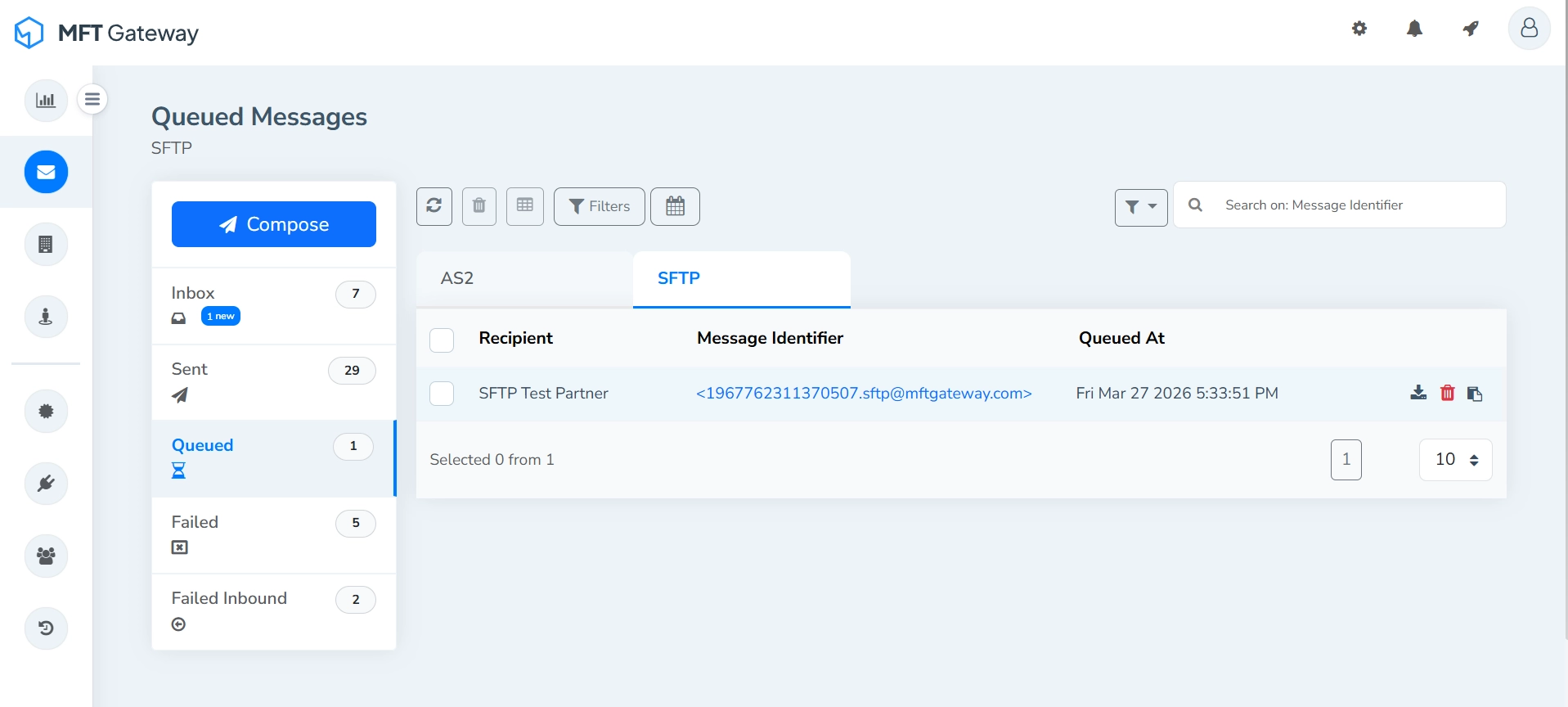
- Recipient - The name of the trading partner who will receive the queued message.
- Message Identifier - Unique identifier for a specific message.
- Queued At - The timestamp indicating when the message was added to the sending queue. Messages are sorted by the most recent timestamp.
Single Message Actions
Each queued message entry provides actions that allow you to manage the message individually.

Download Attachment zip
Downloads all attachments associated with the message as a zip file.
Delete
Permanently removes the queued message entry along with the related attachment(s).
Copy ID
Copies the message ID to the clipboard.
Actions for Selected Message(s)
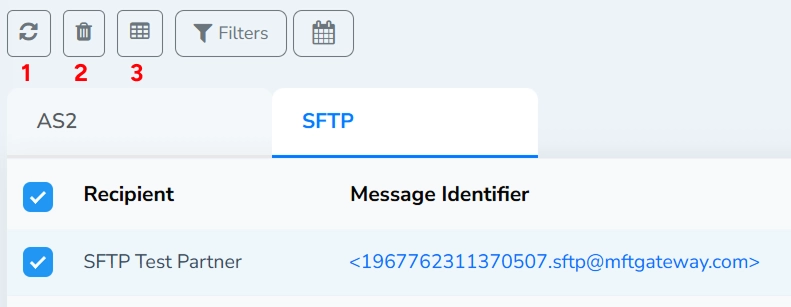
Refresh (1)
Refreshes the queued messages table to retrieve the latest queue status.
When one or more messages are selected using the checkboxes, the rest of the action toolbar becomes active, allowing batch operations on the selected messages.
Delete Selected (2)
Permanently removes all selected messages from the queue.
Export Details (3)
Exports the details of the selected queued messages in CSV format.
Search and Filters
Search Field
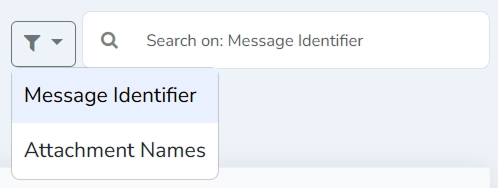
Search queued messages by message identifier or attachment names. Select the search parameter from the dropdown next to the search field.
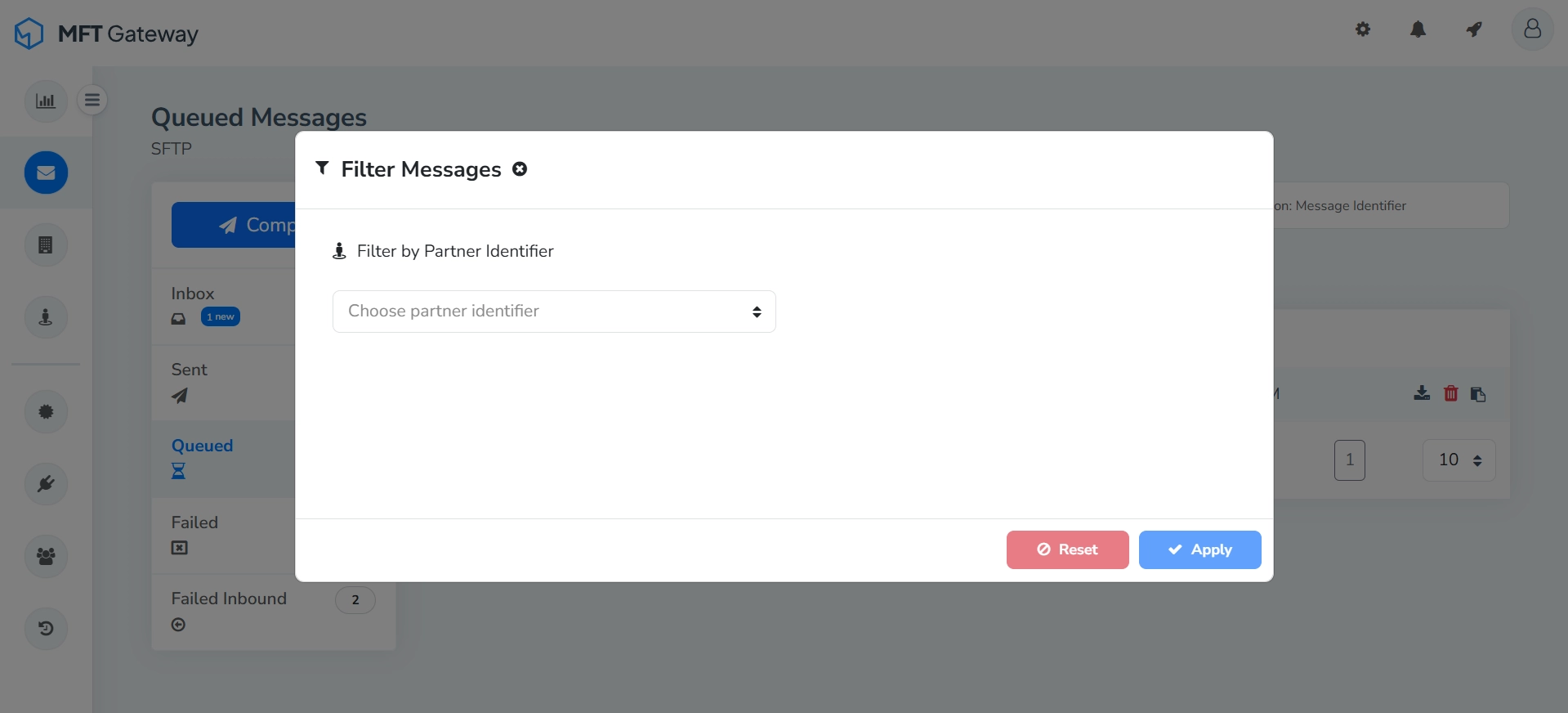
Filters (by identifiers)
You can filter queued messages by partner identifier.
Filter by Timestamp
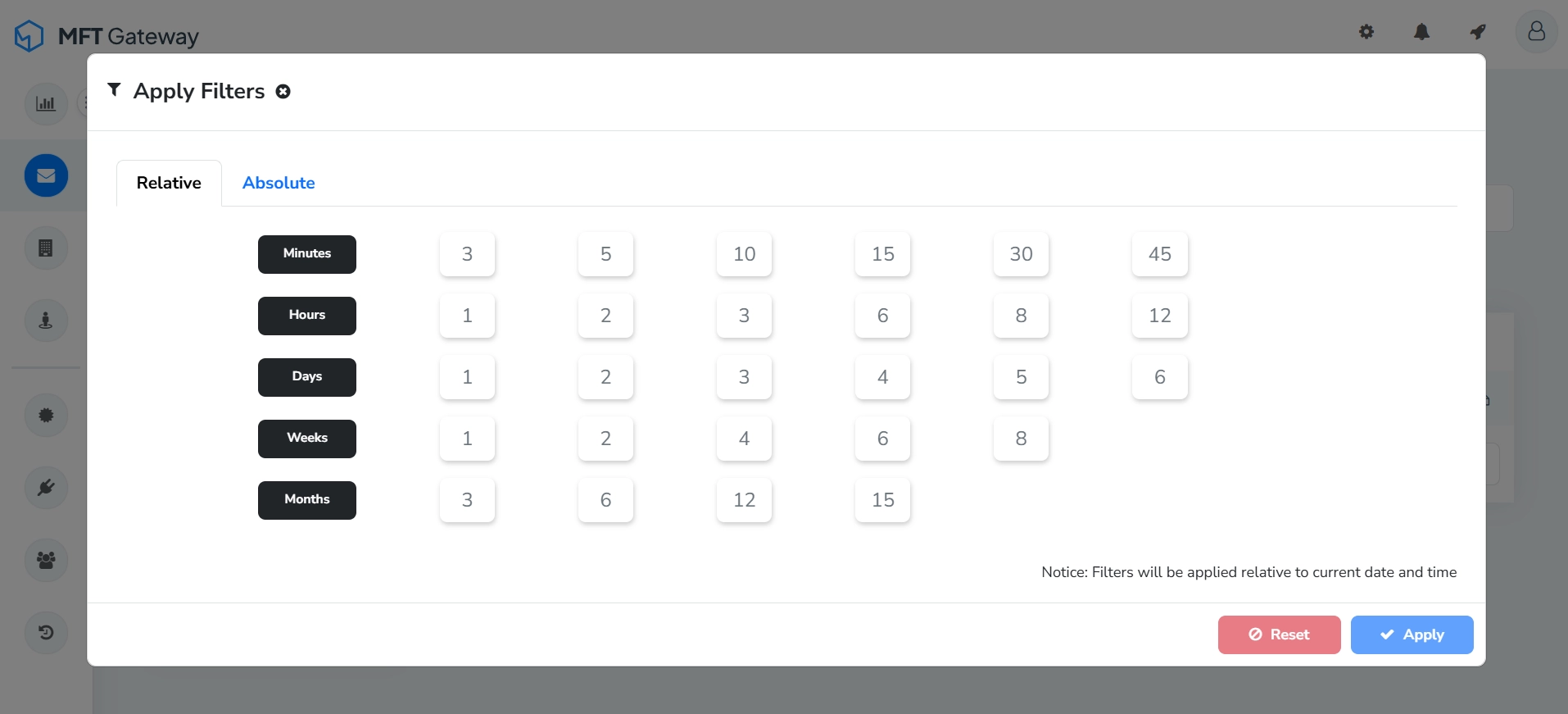
Filter queued messages based on the timestamp.