
Updating a Client Mode Partner
To update a client mode partner, go to the ‘Partners’ option in the left navigation menu, select ‘SFTP’ from the service drop-down at the top of the page, and find the partner, which is marked with a Client tag. On the partner card, click the Manage SFTP Partner Details button to open the Manage SFTP Partner: Client view.
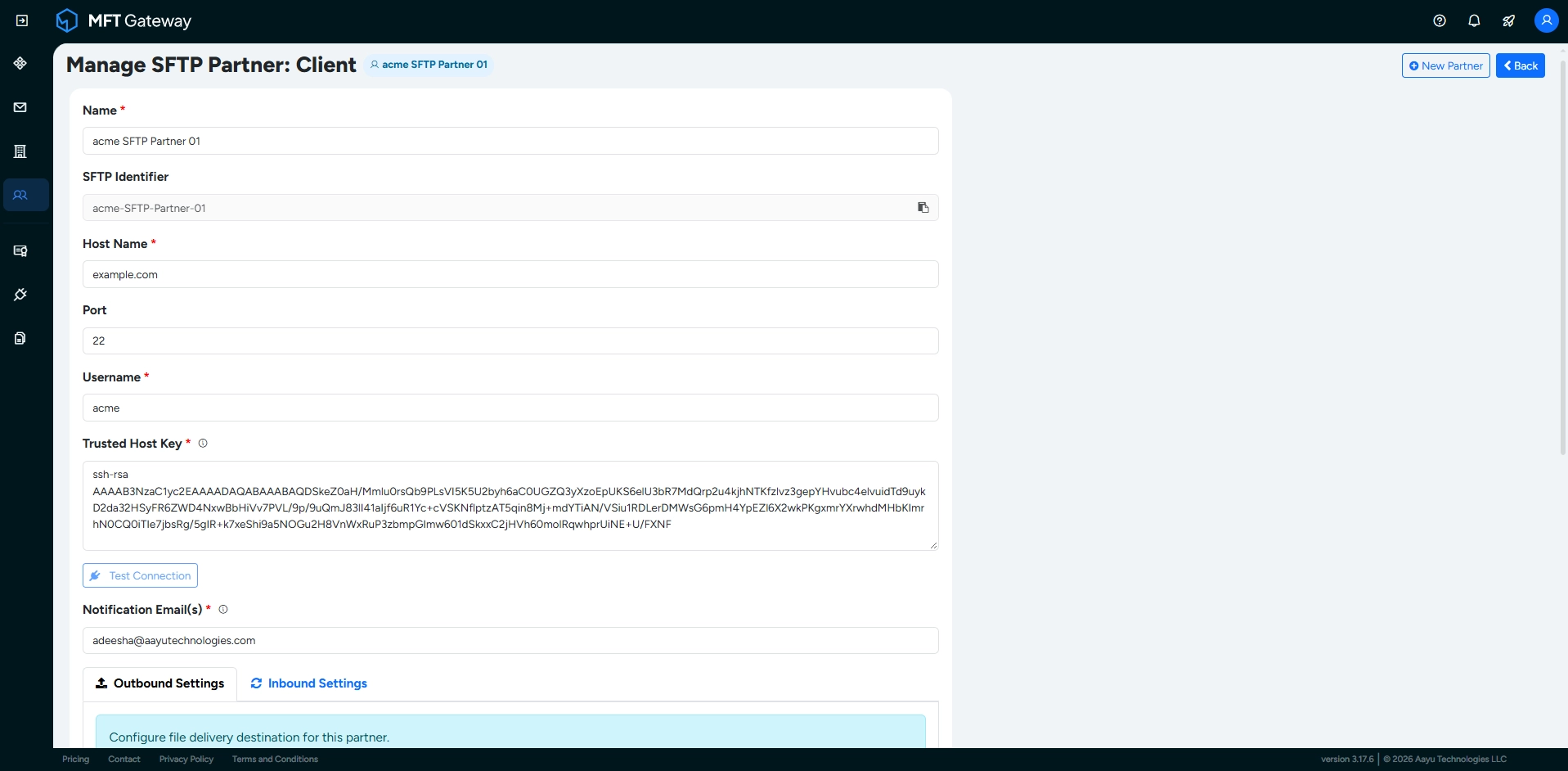
1 Updating the Partner Details
You can change any of the details you entered when creating the partner. The only exception is the SFTP Identifier, which can’t be changed after the partner is created.
Click the Update button at the bottom to save your changes. You will return to the SFTP partner list view after the partner has been successfully updated.
Note: When you change the Host Name, Port or Trusted Host Key, MFT Gateway reconfigures its connection to your partner’s server. The message “Please wait for the connector to become active” is shown while the update completes.
2 Changing the Authentication
The current Authentication Type is shown on the manage view. To change the authentication type or update the credentials, for example after your partner changes the password, turn on the Change SFTP Authentication toggle. Select the New Authentication Type and enter the new credentials as described in Authentication.
3 Testing the Connection
Click the Test Connection button below the Trusted Host Key to check that MFT Gateway can connect and log in to your partner’s SFTP server with the saved configuration. You can also click the test connection button on the partner card.
A Connection test successful or Connection test failed message is shown. If the test fails, check:
- that the host name, port, username and credentials are correct,
- that the trusted host key matches the key presented by your partner’s server, and
- that your partner’s firewall allows MFT Gateway’s outbound static IPs.
Note: The Test Connection button on the manage view is disabled while you have unsaved changes to the connection details or the authentication. Click Update first, then test the connection.
4 Outbound Static IPs
The Outbound Static IPs section lists the IP addresses MFT Gateway uses to connect to your partner’s SFTP server. Share these addresses with your trading partner so that they can allow them through their firewall. Use the copy button next to each address to copy it.
5 SFTP Information
Expand the SFTP Information section for details on exchanging messages with this partner through the SFTP integration:
- Send Message To (SFTP-Partner-ID) – the directory to upload files to, to send them to this partner.
- Sent Attachments – the directory where sent files are stored, with commands to list and download them.
- Received Attachments – the directory where received files are stored, with commands to list and download them.
Note: Unlike server mode partners, client mode partners don’t have the Manage Traffic option for pausing incoming and outgoing traffic.