
Receiving Messages in Client Mode
To receive files from a client mode partner, MFT Gateway connects to your partner’s SFTP server and retrieves the files in the Remote Directory configured in the partner’s Inbound Settings. Your partner only has to place the files in that directory. Files can be retrieved automatically on a schedule, manually on demand, or both.
Important: Before you rely on retrievals, run a connection test and make sure it succeeds. If MFT Gateway can’t connect to your partner’s SFTP server, the retrieval stops and you are not notified, not even by email. See Connection failures below.
1 How Files Are Retrieved
Each retrieval works as follows:
- MFT Gateway lists the files in the remote directory. Its subdirectories, including the archive directory, are not scanned; see Subdirectory Scan Depth.
- Only files that match the File Pattern Filter are selected, if one is set.
- The oldest files are retrieved first, up to the Max Files Per Poll limit. Any remaining files are retrieved in the next retrieval.
- Each retrieved file becomes a separate received SFTP message.
- After a file has been retrieved, it is moved to the archive directory or deleted from your partner’s server, according to the After File Retrieval setting.
Only one retrieval runs at a time for each partner.
2 Automatic Polling
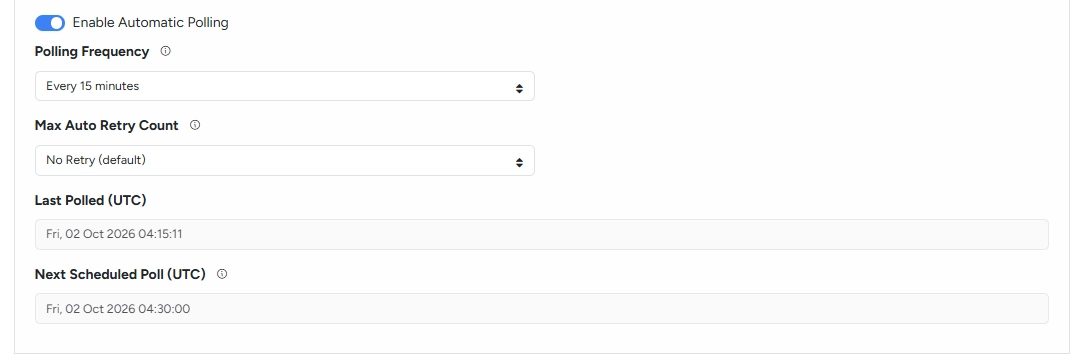
When Enable Automatic Polling is turned on, MFT Gateway retrieves files at the selected Polling Frequency. Polling runs on a fixed schedule aligned to UTC time. For example, with a frequency of every hour, polling runs at the start of every hour; with every 6 hours, at 00:00, 06:00, 12:00 and 18:00 UTC; and with every 24 hours, at 00:00 UTC.
A scheduled poll is skipped if a previous retrieval for the same partner is still in progress. The next poll runs as scheduled.
The partner’s manage view shows the Last Polled (UTC) time and the Next Scheduled Poll (UTC) time.
3 Retrieving Files Manually
You can retrieve files at any time, whether or not automatic polling is enabled. On the client mode partner card, click the retrieve files button (tooltip “Manually trigger file retrieval from remote server”), then click Retrieve in the Retrieve Files Now dialog.
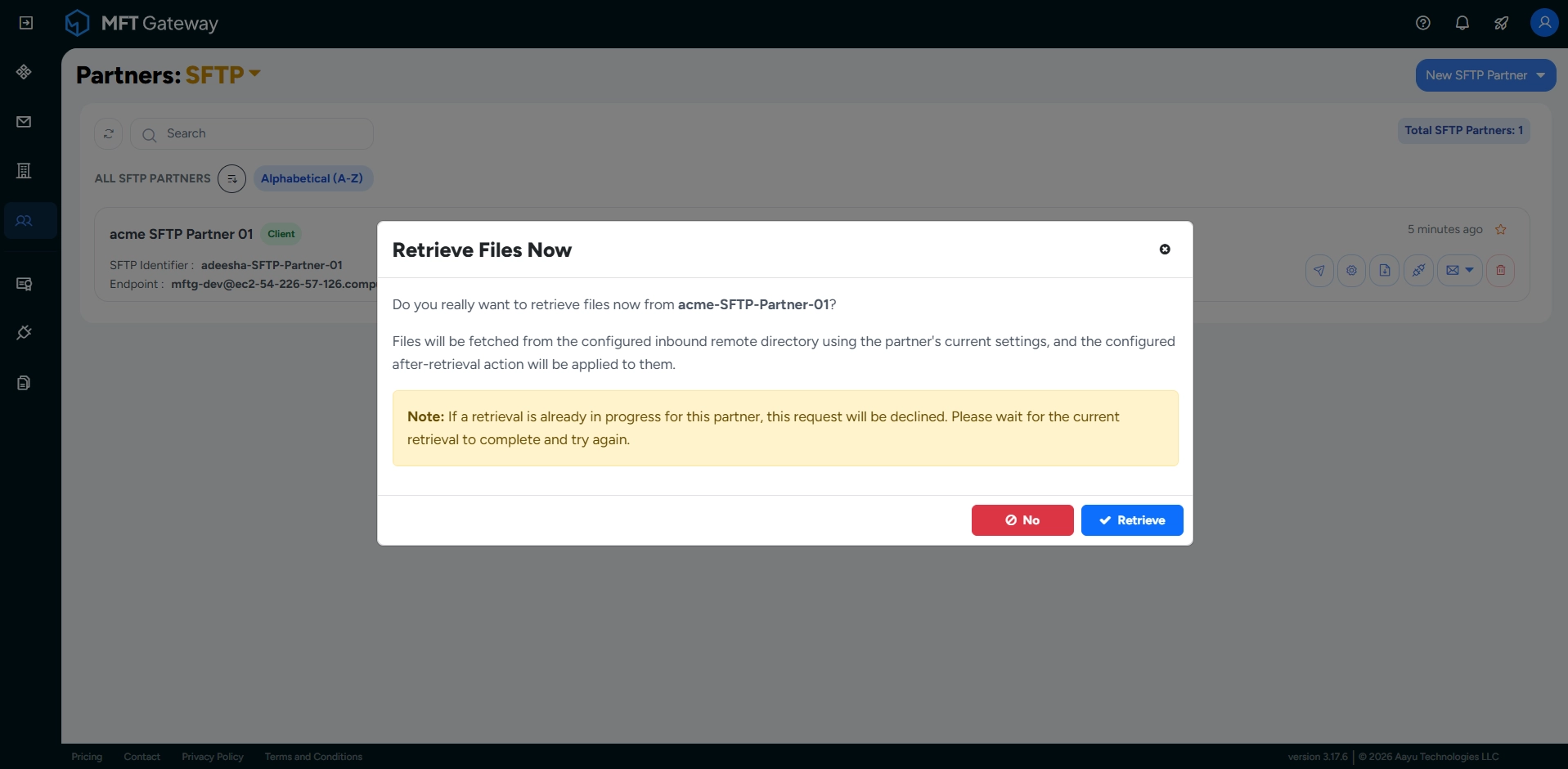
Manual retrieval uses the partner’s current inbound settings and doesn’t change the automatic polling schedule.
Note: If a retrieval is already in progress for the partner, the request is declined. Wait for the current retrieval to complete and try again.
4 Viewing Received Messages
Retrieved files are listed on the MFT Gateway console under SFTP Message Inbox view. Messages from client mode partners are marked CLIENT in the Mode column.
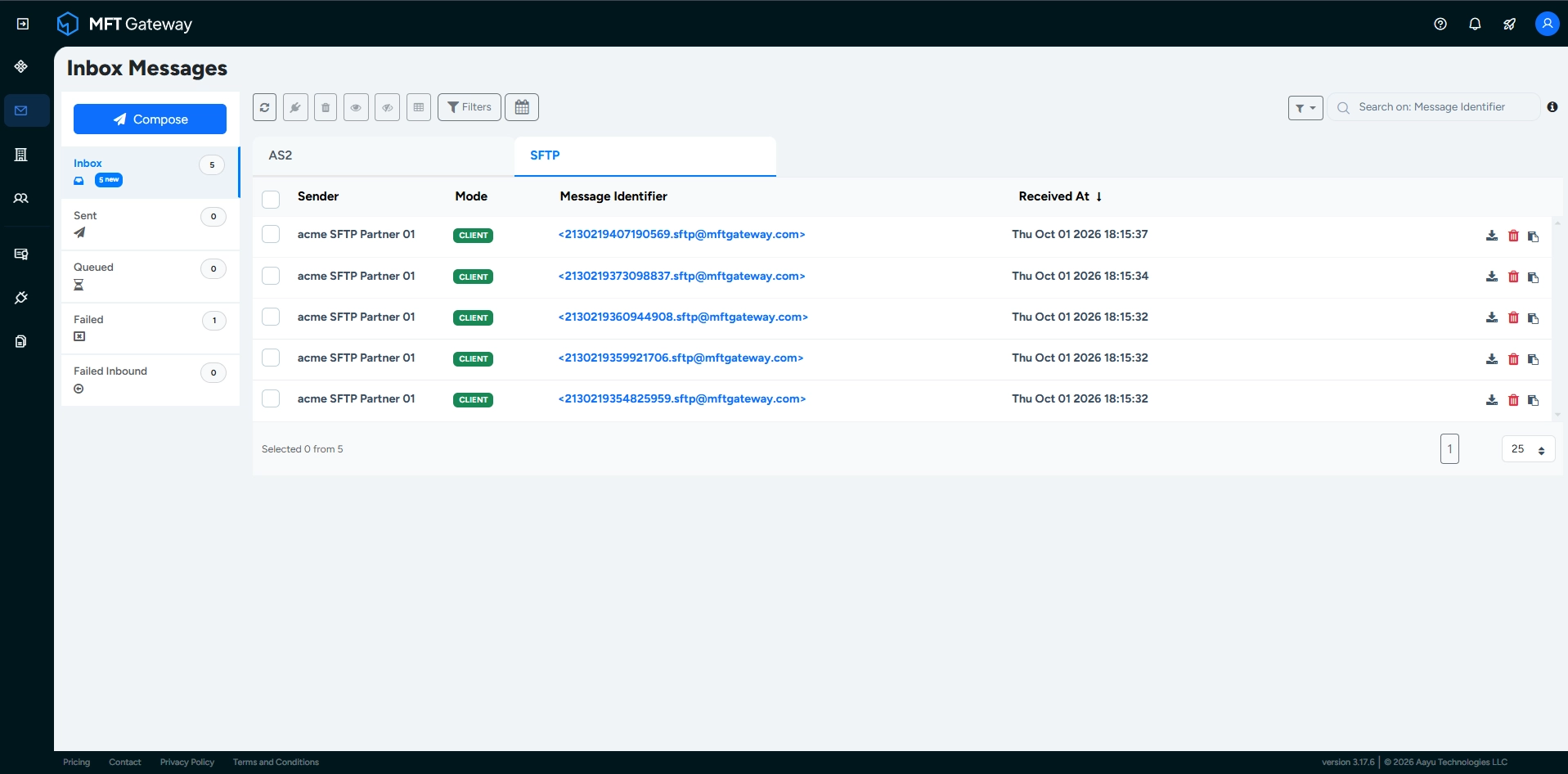
You can view the message details and download the received files as attachments. The received files are stored in the SFTP/partners/<Partner-SFTP-ID>/inbox directory of your MFT Gateway storage, and can also be accessed via the S3 integration or the SFTP integration.
5 Duplicates, Size Limits and Failures
- Connection failures – if MFT Gateway can’t connect to your partner’s SFTP server, for example because the server is down, the credentials or host key have changed, or the partner’s firewall blocks MFT Gateway’s outbound static IPs, no files are retrieved. Unlike outgoing messages, which fail with an email notification, a failed retrieval is not reported: no message is created and no email is sent. Automatic polling tries again at the next scheduled poll. If you expect files that don’t arrive, check the Last Polled (UTC) time and run a connection test.
- Duplicate files – a file with the same name retrieved from the same partner again within 6 hours is treated as a duplicate. It is not processed as a new message, and is kept in the
SFTP/partners/<Partner-SFTP-ID>/duplicate/directory of your MFT Gateway storage. - Files larger than your plan allows – the file is listed under Failed Inbound messages with a reason stating that the payload exceeds the maximum size allowed by your subscription.
- Retrieval failures – if a file can’t be retrieved, MFT Gateway retries according to the inbound Max Auto Retry Count. If the file disappeared from the server before it could be retrieved, it is skipped. No message is created for a file that fails to be retrieved.
- Files without read permission – if the user configured for this partner doesn’t have permission to read a file on your partner’s SFTP server, the file fails immediately and is not retried, regardless of the Max Auto Retry Count. The file is left unchanged in the remote directory, so it is picked up and fails again in later retrievals until your partner grants read permission on it.
- After-retrieval action failures – if the file can’t be moved or deleted on your partner’s server, for example because the archive directory does not exist, MFT Gateway retries according to the same retry count. A file that is left in the remote directory may be retrieved again in a later retrieval.
To be informed of retrieval and after-retrieval action failures of individual files by email, enable Enable Email Notifications for Inbound Message / Post-Retrieval Action Failures in the partner’s notification settings. This notification does not cover connection failures.