
Sending Messages in Server Mode
This page describes sending messages to server mode SFTP partners. For partners whose SFTP server MFT Gateway connects to, see Sending Messages in Client Mode.
After completing the SFTP partner configuration, we can try sending a message. It’s quite easy to send messages to your SFTP partner using the MFT Gateway console. Make sure that the SFTP is selected as a message service from the ‘Organization profile’. Go to the Messages view using the left navigation menu, then choose SFTP from the upper sub-menu.
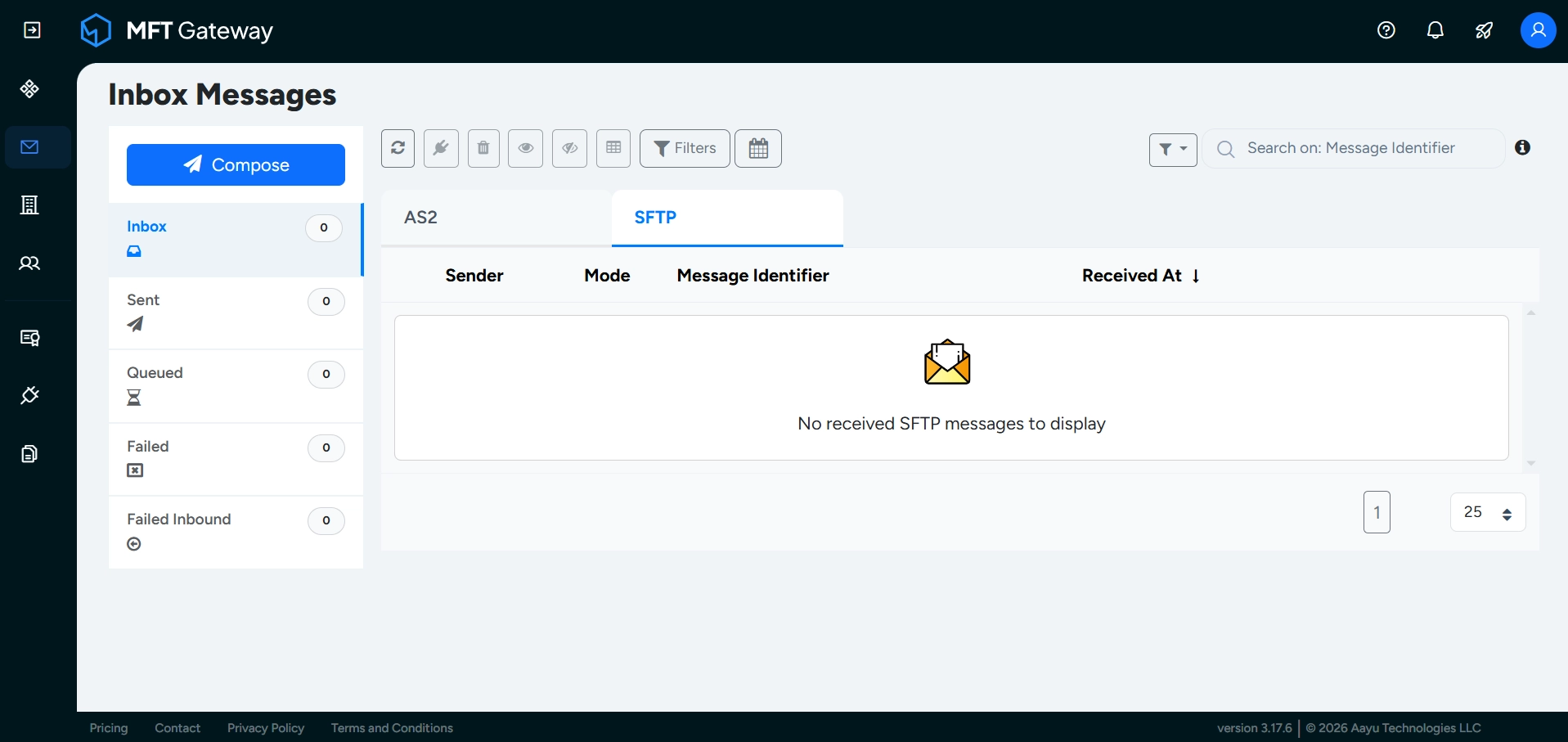
Click the Compose button.
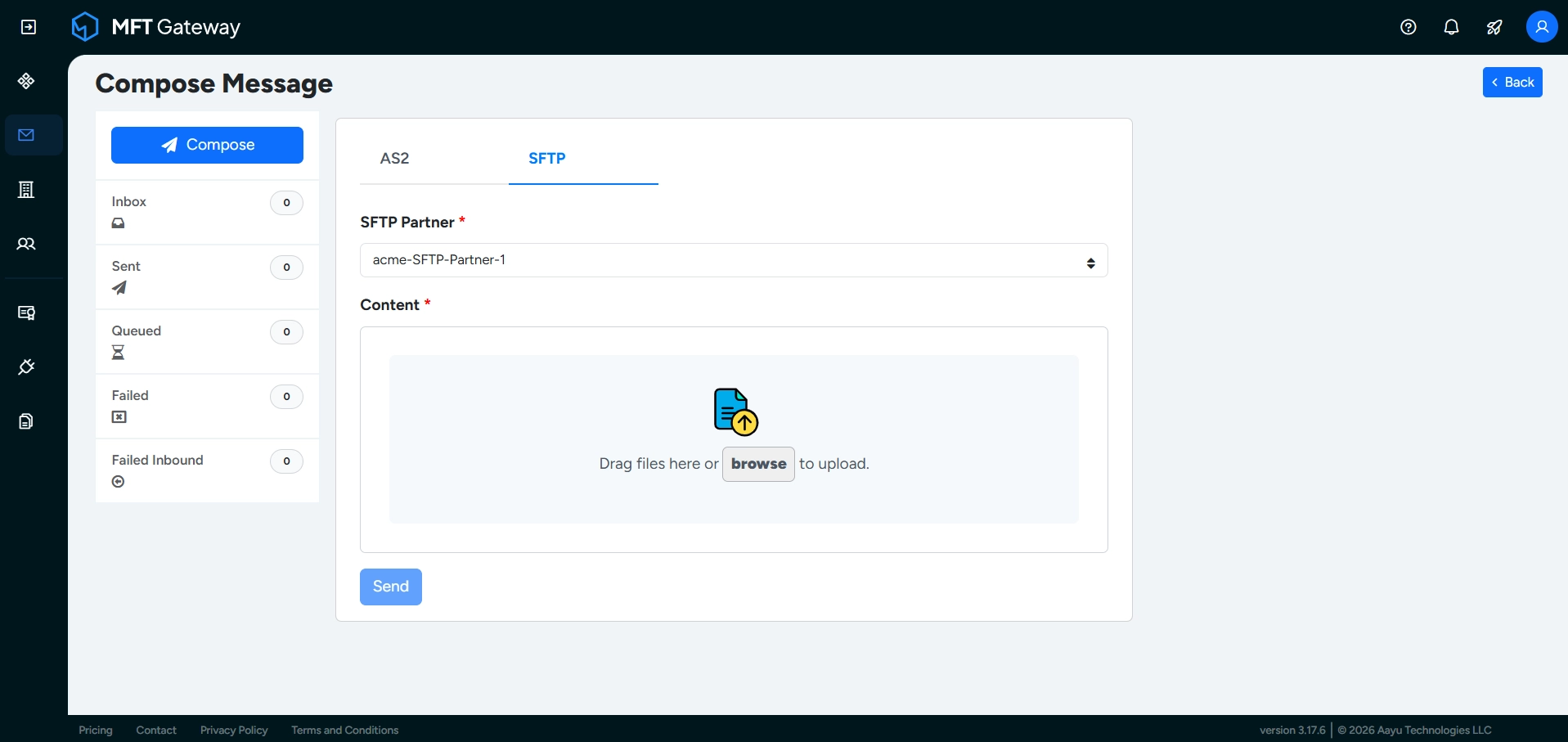
- Choose the desired partner from the SFTP Partner drop-down list on the SFTP message composition view. If you only have one partner, it will be selected as the default.
- Select the files to be sent. You can either drag and drop them into the dropzone or browse and choose the files.
- Once you have uploaded, click the Send button. If the message is successfully sent to the partner, it will be added to the Sent messages list. If the message fails, it will be moved to the Failed list.
Note: If the total size of the files in a message exceeds the maximum payload size allowed by your subscription plan, the message is not sent. It is moved directly to the Failed list with a reason stating that the payload exceeds the maximum size allowed by your subscription. This applies to messages sent from the web console and through integrations.
The sent file will be stored in the SFTP/partners/<Partner-SFTP-ID>/outbox directory.
Refer to Sending Files over SFTP to learn how to send SFTP messages using SFTP integration.
Refer to Sending Files over S3 to learn how to send SFTP messages using S3 integration.
If the Remove Subdirectory With Random Message ID and/or Add Custom Subdirectory options are enabled in the File Structure settings of this partner, the structure will differ from the one above.
When the SFTP partner logs in as the SFTP client, the partner will notice that the messages successfully sent by the MFT Gateway side will be stored on:
/<mftg-bucketname>/SFTP/external/<partner-SFTP-id>/inbox/<unique-directory>/<file-name>
The inbox folder structure described above is the default file structure used by MFT Gateway.