
Sending Messages in Client Mode
When you send a message to a client mode partner, MFT Gateway connects to your partner’s SFTP server and uploads the message’s files to the Remote Directory configured in the partner’s Outbound Settings.
Important: Before you send the first message to a client mode partner, run a connection test and make sure it succeeds. If MFT Gateway can’t connect to your partner’s SFTP server, for example because of a wrong host key or credentials, or because the partner’s firewall doesn’t allow MFT Gateway’s outbound static IPs, the message fails. Run the test again whenever you change the partner’s connection details.
1 Sending a Message from the Web Console
Go to the Messages view using the left navigation menu, choose SFTP from the upper sub-menu, and click the Compose button. You can also click the Send Message button on the partner card.
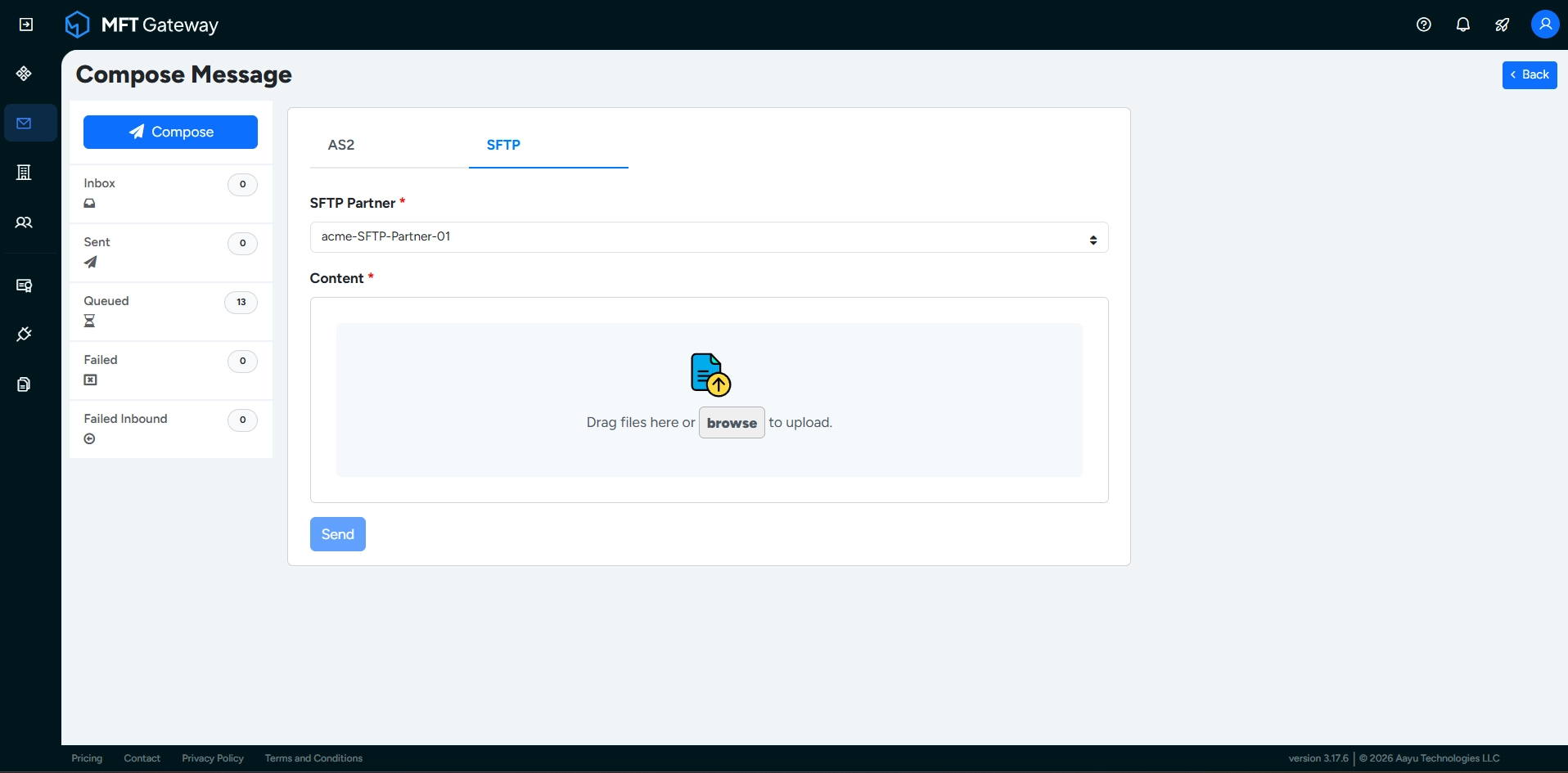
- Choose the client mode partner from the SFTP Partner drop-down list.
- Select the files to be sent. You can either drag and drop them into the dropzone or browse and choose the files. You can attach up to 10 files to a message for a client mode partner.
- Click the Send button.
The message is added to the Queued messages list while MFT Gateway uploads the files. When all files have been processed, the message moves to:
- the Sent list, if every file was uploaded successfully, or
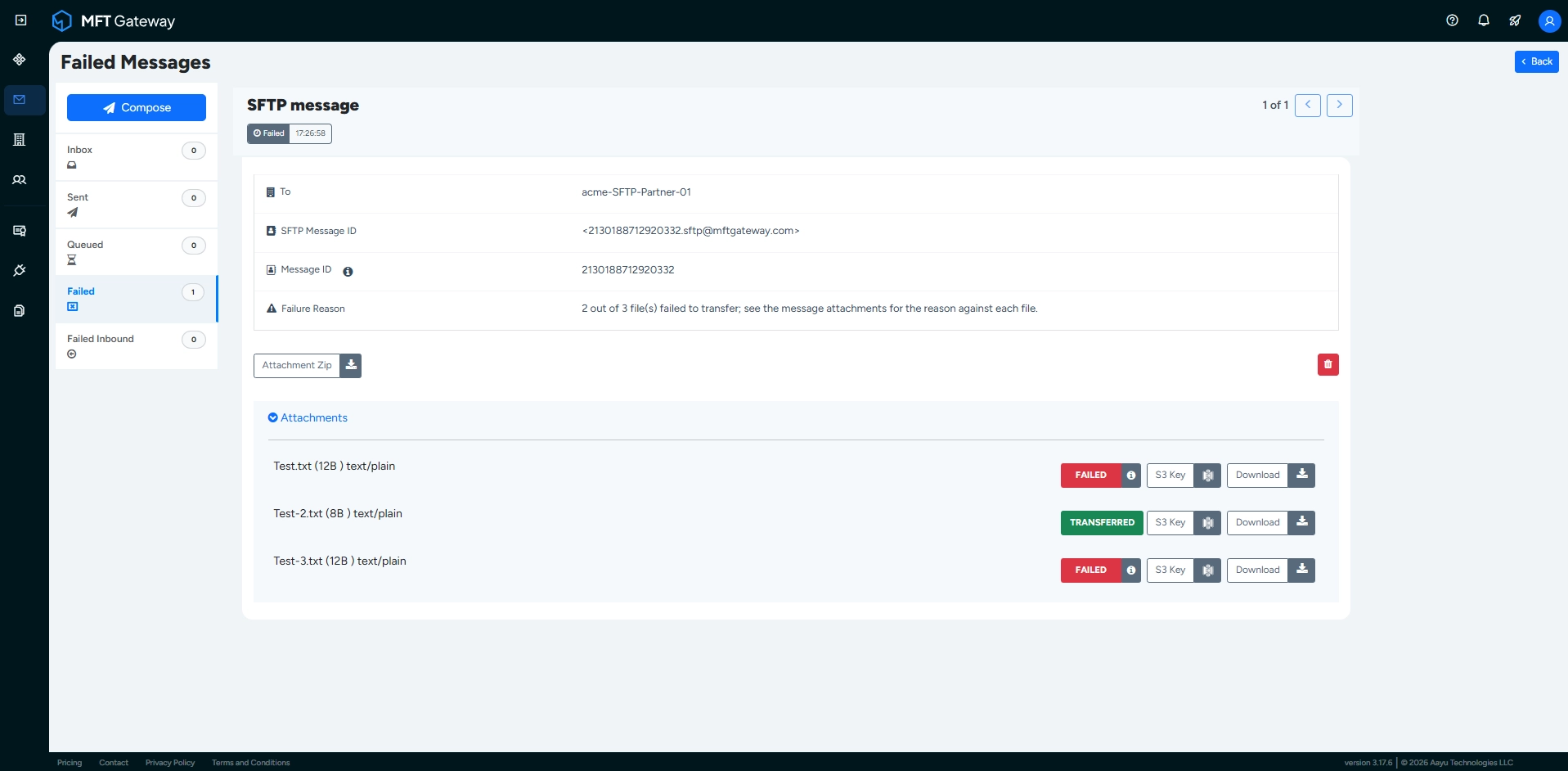
- the Failed list, if one or more files could not be uploaded and no automatic retries remain. The failure reason shows how many files failed, for example “1 out of 3 file(s) failed to transfer”.
Note: If the total size of the files in a message exceeds the maximum payload size allowed by your subscription plan, the message is not sent. It is moved directly to the Failed list with a reason stating that the payload exceeds the maximum size allowed by your subscription, and it is not retried. This applies to messages sent from the web console and through integrations.
The sent files are stored in the SFTP/partners/<Partner-SFTP-ID>/outbox directory of your MFT Gateway storage.
2 Sending a Message through Integrations
You can also send messages to client mode partners through the SFTP integration and the S3 integration, in the same way as for server mode partners.
Note: A message to a client mode partner can carry at most 10 files. Only the web console enforces this limit, so make sure your integrations don’t submit more than 10 files in a single message.
3 Checking the Status of Each File
Open a sent or failed message to see the status of each of its files. Each attachment is marked TRANSFERRED or FAILED. Hover over the information icon next to a failed file to see why it failed.
4 Automatic Retries
If you set a Max Auto Retry Count in the partner’s Outbound Settings, MFT Gateway automatically retries a failed message. The first retry runs after 30 seconds, and the delay doubles for each following retry, up to one hour. Only the files that failed are sent again.
While a message is waiting to be retried, it stays in the Queued list, which then shows additional columns:
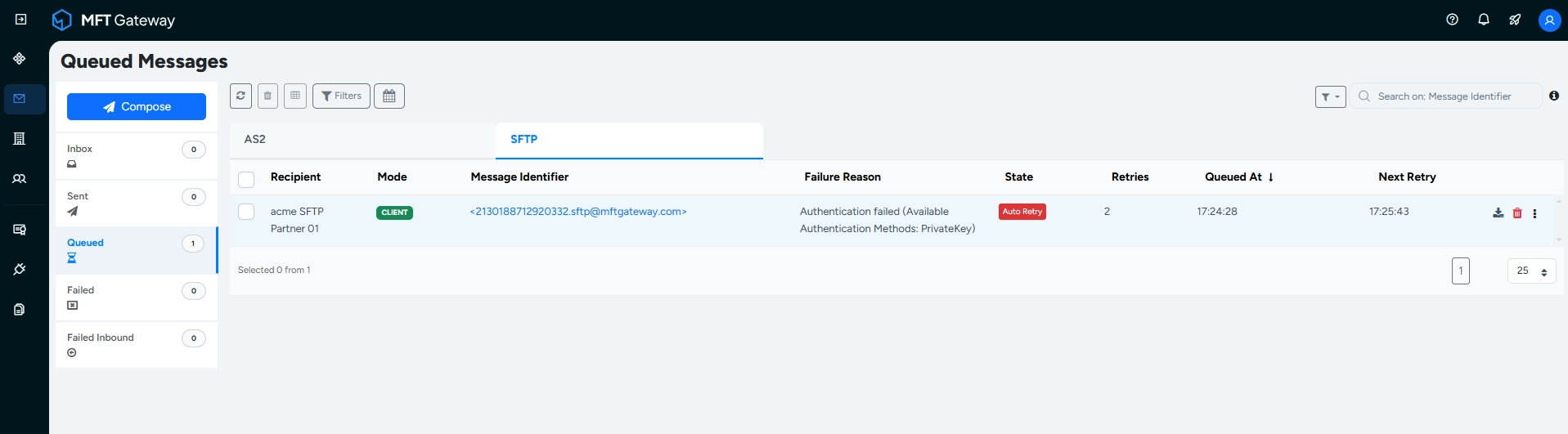
- Failure Reason – why the last attempt failed.
- State – Queued, Auto Retry, Manual Retry or Finished.
- Retries – how many retries have been made.
- Next Retry – when the next retry is scheduled.
To stop retrying a message, click Stop auto retry on the message. The message is moved to the Failed list.
Note: Some failures are not retried. For example, if the remote directory does not exist on your partner’s server, the message fails immediately with the reason “Remote directory path doesn’t exist on remote server”.
5 Retrying a Failed Message
You can retry a failed message to a client mode partner manually from the Failed messages list. Click Retry on the message and confirm. MFT Gateway sends only the files that were not transferred before. See Failed Messages for details.
Manual retry is available only for messages to client mode partners.