Received Messages View
When a message is successfully received from a partner, it will be available in the Received Messages view. These messages represent incoming communications that have been accepted and processed by the system. This view allows users to review message details, track MDN statuses, and perform actions on individual or multiple received messages.
Understanding the Received Messages Table
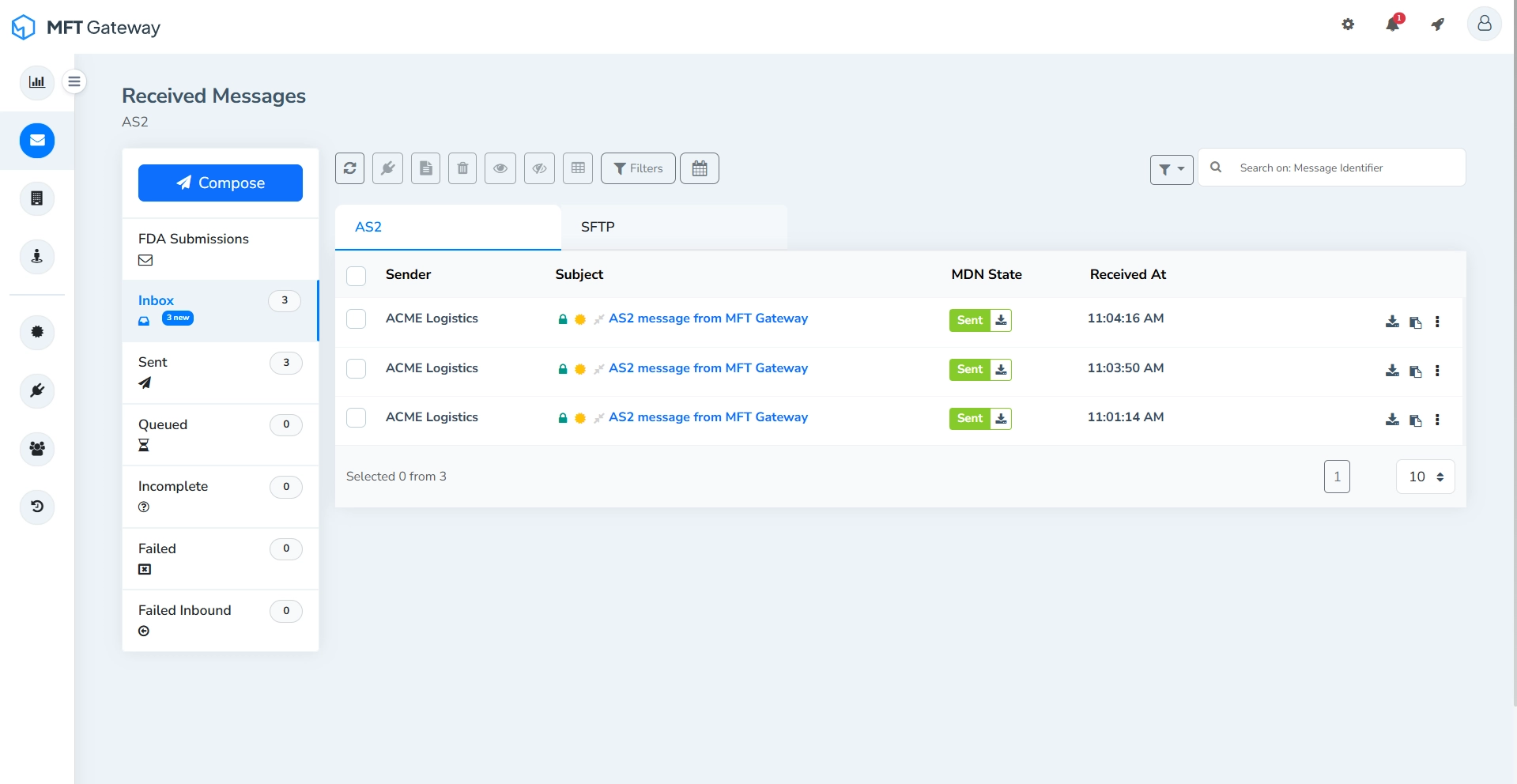
- Sender – The name of the trading partner that sent the message.
- Subject – The subject associated with the received message.
MDN State – Indicates the status of the Message Disposition Notification (MDN) related to the received message. The color of the background represents the current MDN state:
Sent (Green) – Sent Signed MDN.
Sent (Red) – Sent Error MDN.
Failed (Red) – Sending Failed.
Not Requested (Grey) – An MDN was not requested for this message.- Received At – The timestamp indicating when the message was received by the system. Messages are sorted by the most recent timestamp.
Single Message Actions
Each received message entry provides actions that allow you to manage the message individually.

Download MDN
Downloads the MDN associated with the received message as a .raw file.
Download Attachments
Downloads all attachments associated with the received message as a zip file.
Copy ID
Copies the AS2 Message ID of the received message to the clipboard.
By clicking the more options menu (⋮) you can access additional actions. (This will only be visible on the messages received for the webhook/EDIG integrated stations. Delete option will also be inside the more options menu)

Delete
Permanently removes the received message entry along with the transport headers, MDN, and the raw message.
Redeliver Webhook Notification
Retriggers the webhook notification for the selected message. Notification will be sent to the relevant webhook endpoint configured in the webhook integration section.
Redeliver to EDI Generator
Retriggers the delivery of the selected message event to the EDI Generator.
Actions for Selected Message(s)
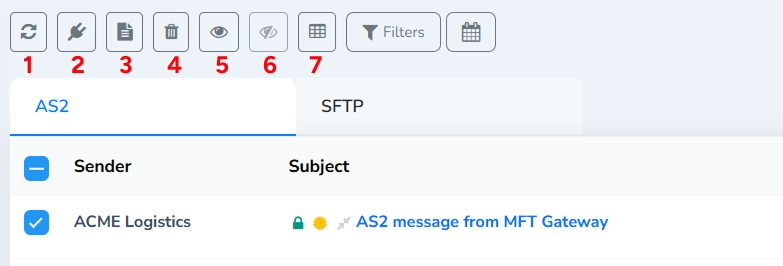
Refresh (1)
Refreshes the received messages table to retrieve the latest message details.
When one or more entries are selected using the checkboxes, the rest of the action toolbar becomes active, allowing batch operations on the selected messages.
Redeliver Selected to Webhook Endpoint (2)
Retriggers the webhook notification for the selected messages. Notifications will be sent to the relevant webhook endpoints configured in the webhook integration section.
Redeliver Selected to EDI Generator (3)
Retriggers the delivery of the selected message events to the EDI Generator.
Delete Selected (4)
Permanently removes all selected messages and the respective transport headers, MDNs, and the raw messages.
Mark Selected as Read (5)
Marks the selected messages as read.
Mark Selected as Unread (6)
Marks the selected messages as unread.
Export Details (7)
Exports the details of the selected messages in CSV format.
Search and Filters
Search Field
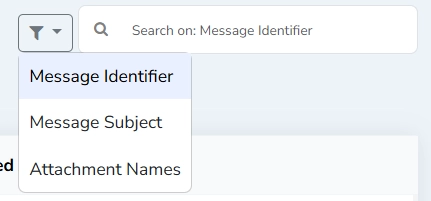
Search received messages by AS2 message identifier, message subject, or attachment names. Select the search parameter from the dropdown next to the search field.
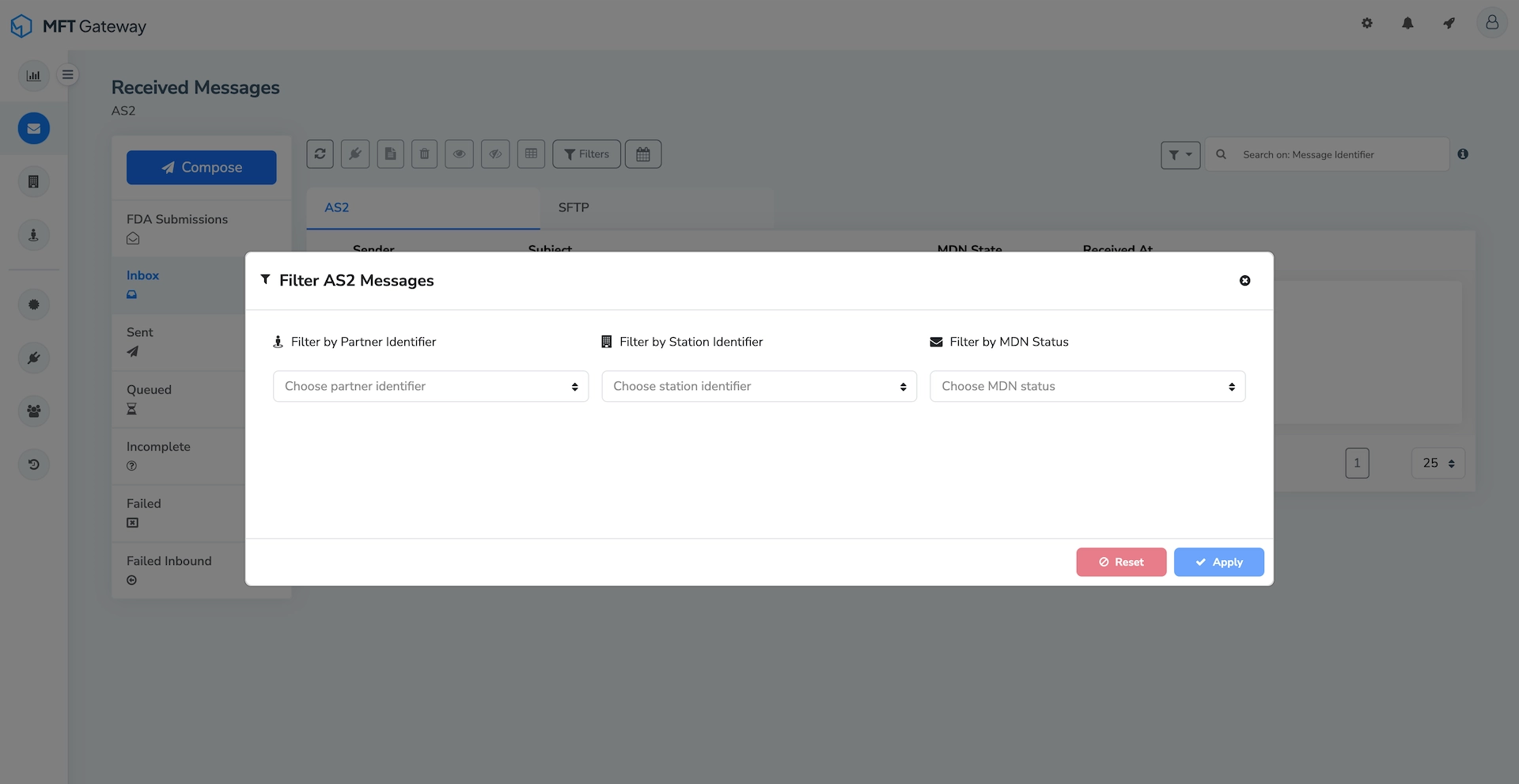
Filters by identifiers and/or MDN status
You can filter received messages by partner identifier, station identifier and/or MDN status.
Supported MDN status filters:
- MDN Pending.
- Sent Positive MDN, Signed.
- Sent Positive MDN, Unsigned.
- Sent Error MDN.
- MDN send Failed.
- Processing Failed.
- MDN Not Requested.
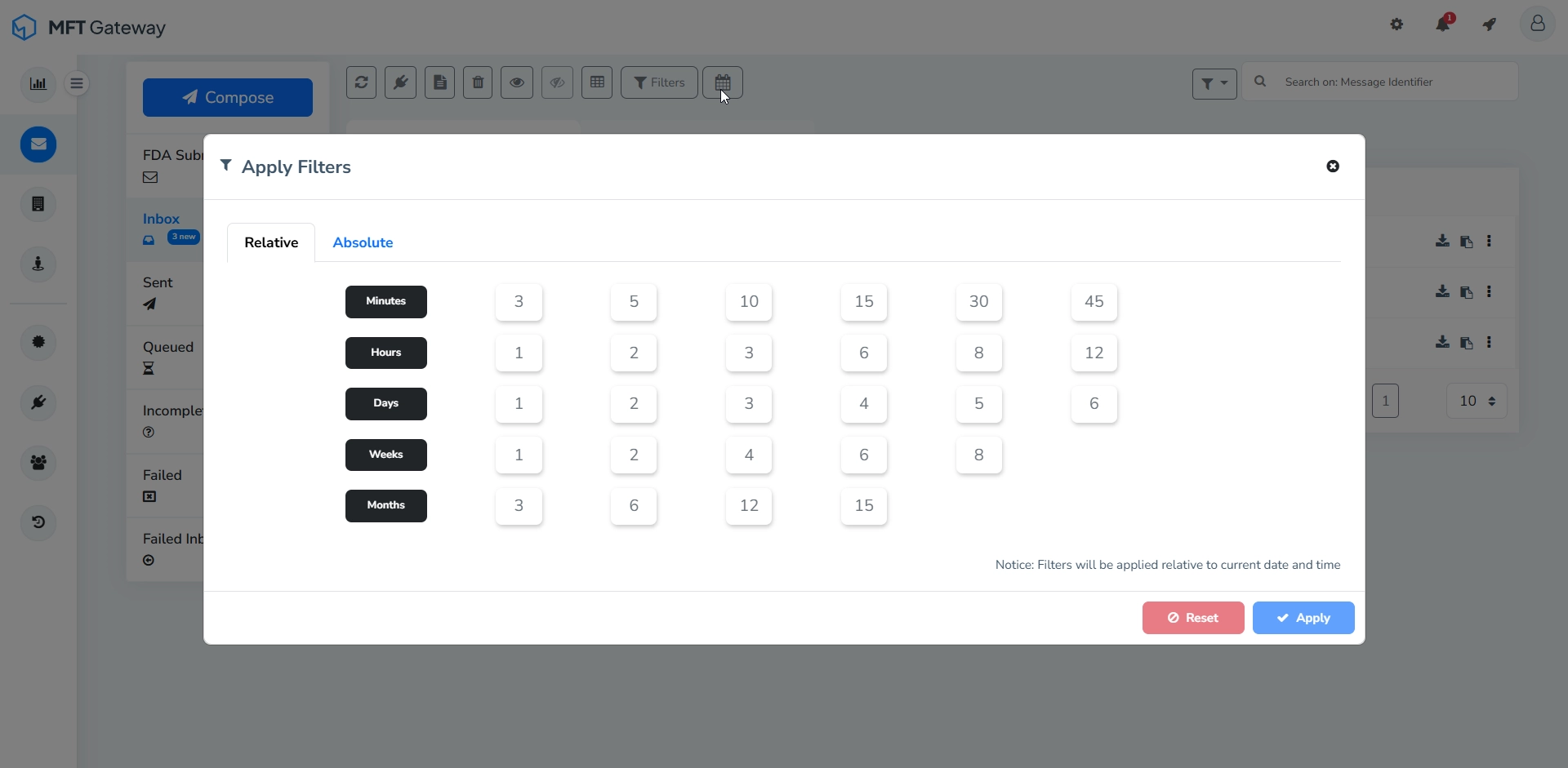
Filter by Timestamp
Filter received messages based on the timestamp.