
EDI Generator Outbox View
The Outbox displays all EDI messages that have been sent to your trading partners. It helps users quickly review the delivery status, view acknowledgments, and manage files with individual or bulk actions.
Understanding the Outbox Table
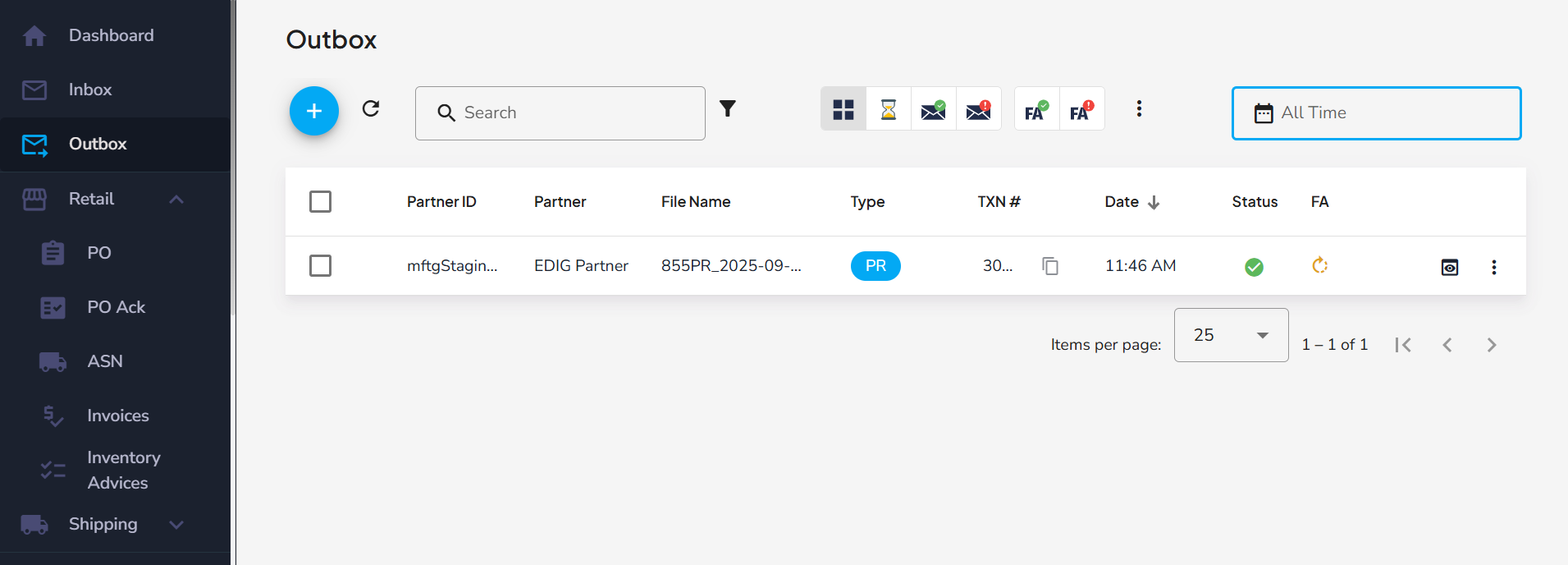
- Partner name & ID – The name of the recipient partner, with their AS2 ID shown below it.
- File Name – The name of the EDI file that was transmitted.
- Type – The sent EDI document type (e.g., PR, PO for X12, or ORDERS, DESADV for EDIFACT).
- TXN – A unique transaction number assigned for each EDI.
- Date – The timestamp of the most recent update (e.g., when the EDI was sent or when the last failure occurred).
Status - Indicates the current state of the outgoing EDI:
Outbox Status When it Happens QueuedThe EDI has been submitted and is waiting to be sent. SentThe EDI was successfully sent. FailedThe EDI could not be sent. Hover over the error icon to see details of the issue. FA – Shows the status of the Functional Acknowledgment (997/CONTRL) received from the partner system as an icon. Hover over the icon to see the FA status:
Icon FA Status When it Happens FA PendingThe EDI was sent and the FA has not yet been received. FA Received - AcceptedThe EDI was accepted by the partner. FA Received - Transaction Accepted with ErrorsThe EDI was accepted by the partner but contained errors. FA Received - Transaction RejectedThe EDI was rejected by the partner. FA Received - May Contain ErrorsThe received FA EDI itself may contain errors. A dash (-) is shown if the EDI has not been sent yet.
You can sort the table by Type or Date by clicking the column header. Hovering over a File Name or TXN value displays a copy icon to quickly copy that value, and you can use the refresh button on the left side of the toolbar to reload the list.
Single Entry Actions
Every Outbox entry provides a set of actions for viewing and managing the EDI:
View Outbox Message
Click on any row in the table to open the Outbox Message detailed view.
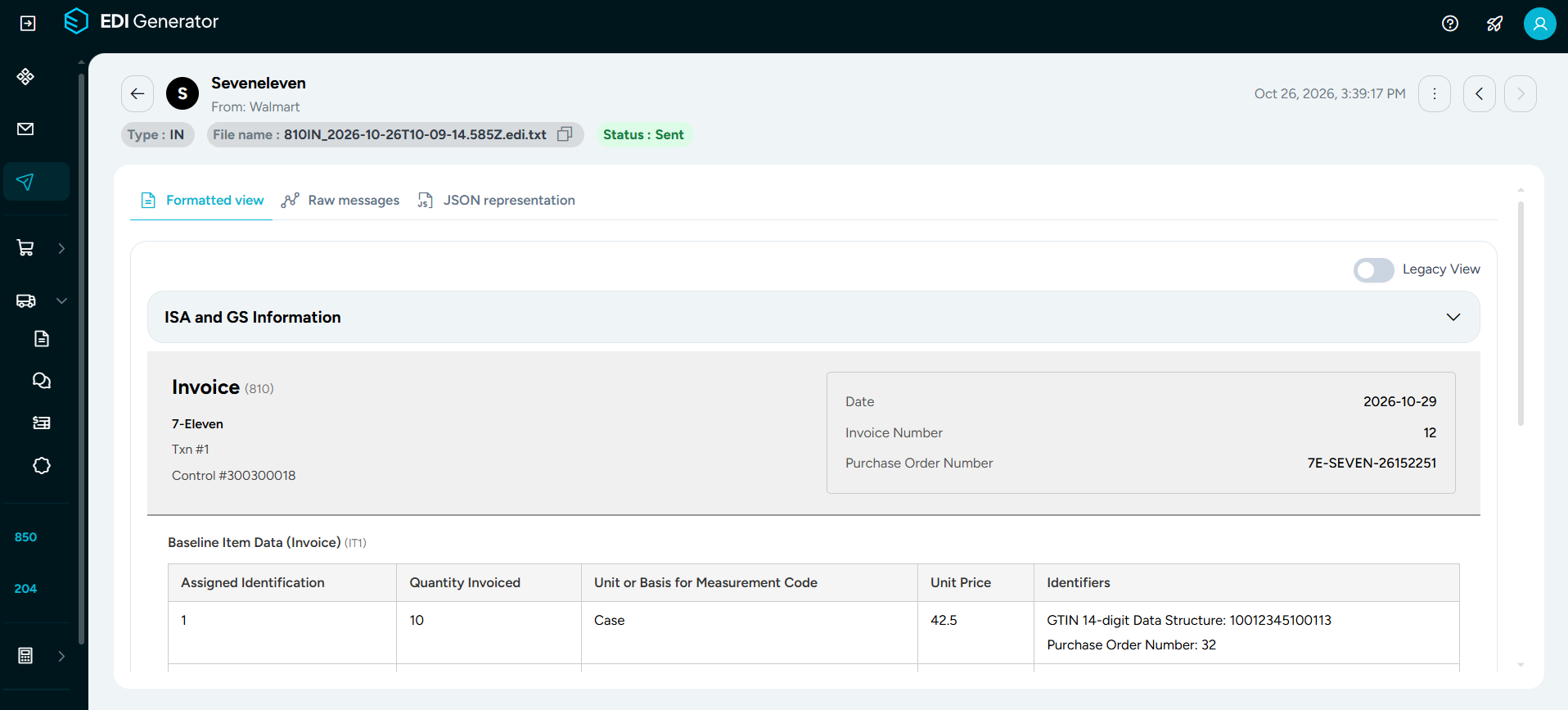
The top of the page shows information about the partner, document type, file name, status and sent date of the Outbox message. Use the arrow buttons at the top right to move to the previous or next entry, the three-dot menu (⋮) to access the Outbox entry specific actions, and back arrow to return to the Outbox.
The page shows the sent EDI in three different forms:
- Formatted View – The Formatted View displays the EDI in a human-readable, structured format. Instead of showing the raw EDI segments, it organizes the data into labeled sections, tables, and fields, making it easy to understand the content at a glance and also with the option to print the document. If available, you can use the Legacy View toggle to view the EDI in legacy formatted view layout.
- Raw Messages – Displays the original EDI content exactly as transmitted.
- JSON Representation – Shows the internal JSON structure generated by EDI Generator for this EDI during processing.
Click the three-dot menu (⋮) at the top right of the page to open the action toolbar for the EDI:
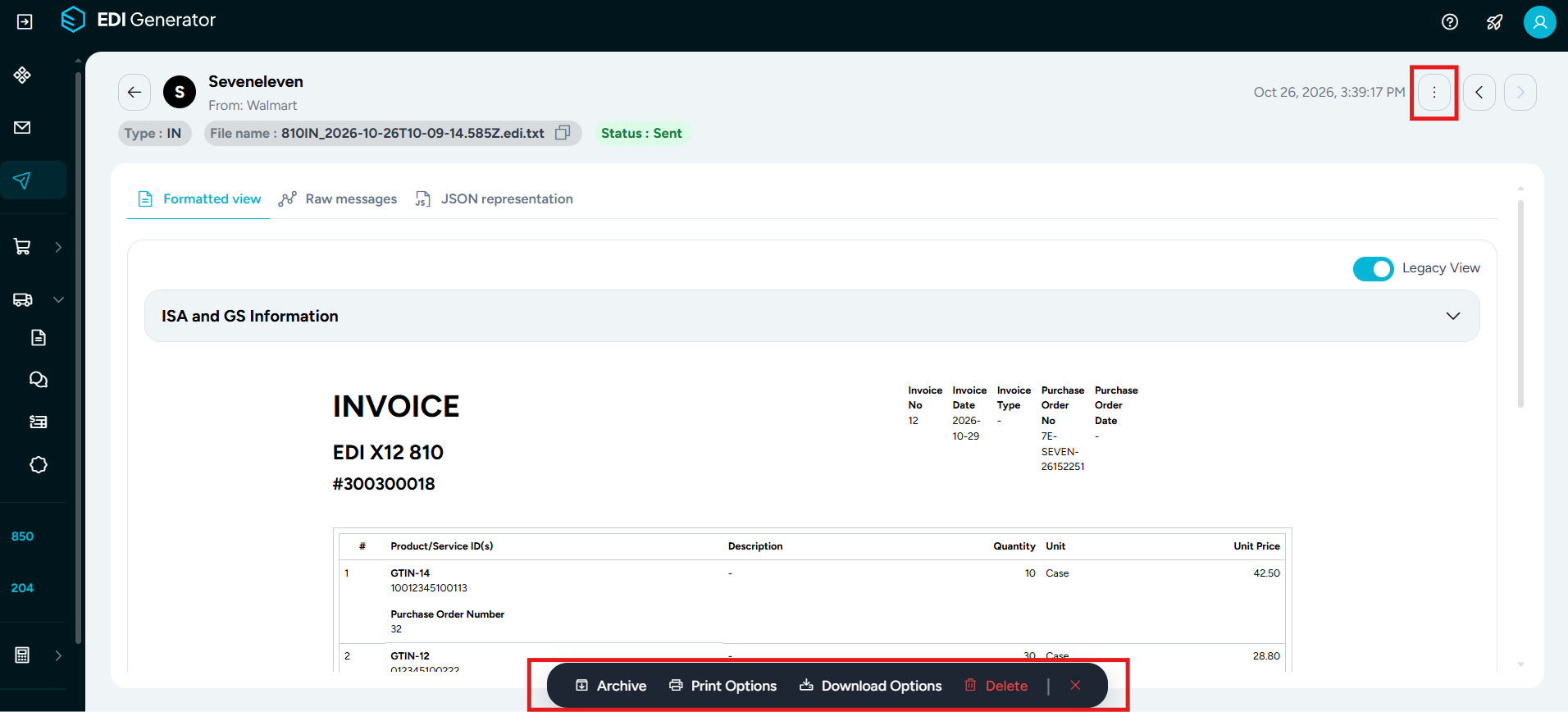
- Archive – Moves the outbox entry to the archived state.
- Print Options – Prints the EDI.
- Download Options – Downloads the EDI either as a Raw EDI file or a JSON converted file.
- Delete – Permanently removes the entry from the Outbox.
Click the close (✕) icon to close the toolbar.
By clicking the three-dot menu (⋮) in the Actions column, you can access additional actions.
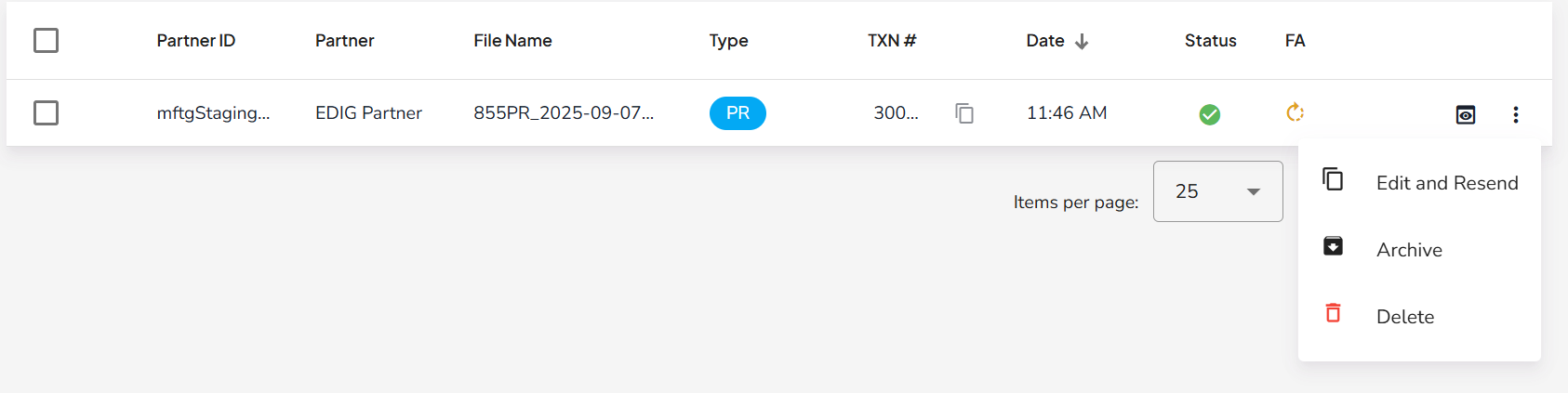
Edit and Resend
Opens the EDI in the outbox composer to make edits and resend as a new entry.
This option is available only for documents initially created using legacy EDI definitions. The (re)sent document will appear only in the Outbox and not in any transaction-type-specific lists (e.g., a resent invoice/810 will not show up under Retail > Invoices).
Transmission Details
This option allows you to view outgoing transmission-related information from the MFT Gateway side of the message.
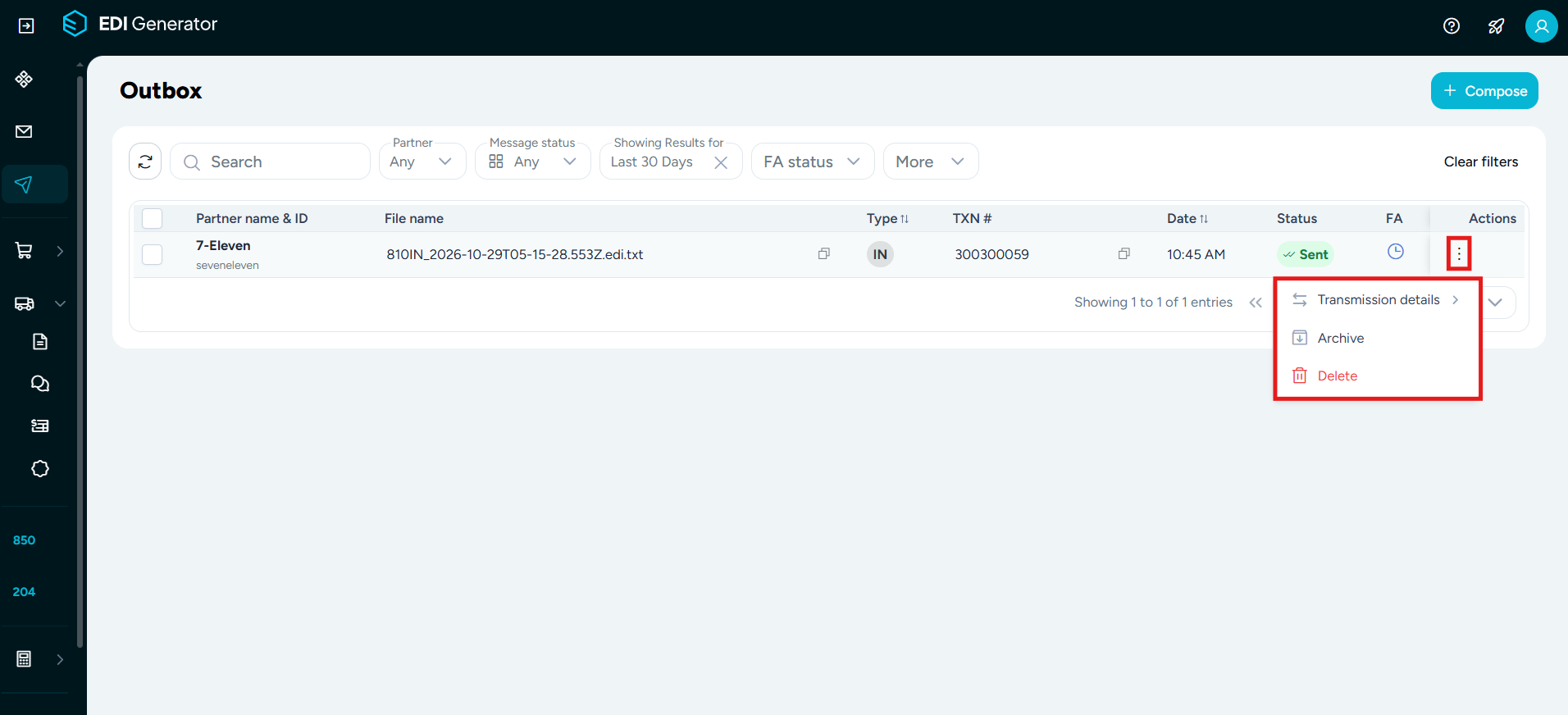
The following actions are available:
- Copy AS2 identifier – Copies the AS2 identifier (or SFTP identifier) associated with the transmission.
- Copy MFTG message ID – Copies the message ID assigned by MFT Gateway.
- Navigate to MFTG message – Opens the corresponding message in MFT Gateway.
This information is useful when troubleshooting transmission issues or when cross-referencing messages between EDI Generator and MFT Gateway.
Archive
Moves the outbox entry to the archived state. Archived entries can be accessed by enabling the Show Archived filter.
Delete
Permanently removes the entry from the Outbox.
Selected Actions
When one or more entries are selected using the checkboxes, the action toolbar becomes active, allowing you to perform batch actions on the selected EDIs.

Archive - Moves selected entries to the archived state.
Generate PDF - Creates a PDF containing the formatted views of the selected entries.
Download Options - Download selected entries either as Raw EDI files or JSON converted files.
Export as CSV - Exports the main details of the selected EDIs into a CSV file. This CSV will have a special column named “Keys”, which contains the values of the key fields specific to that EDI type.
Delete - Removes all selected entries.
Click the close (✕) icon on the toolbar to clear the selection.
Search and Filters
The toolbar above the table allows users to refine and locate outgoing EDIs quickly:
Search Text Box
Search for outgoing EDIs by Invoice Number, PO Number, Shipment ID, Type, TXN #, or File Name. You can wrap the search phrase with double-quotes for exact matches.
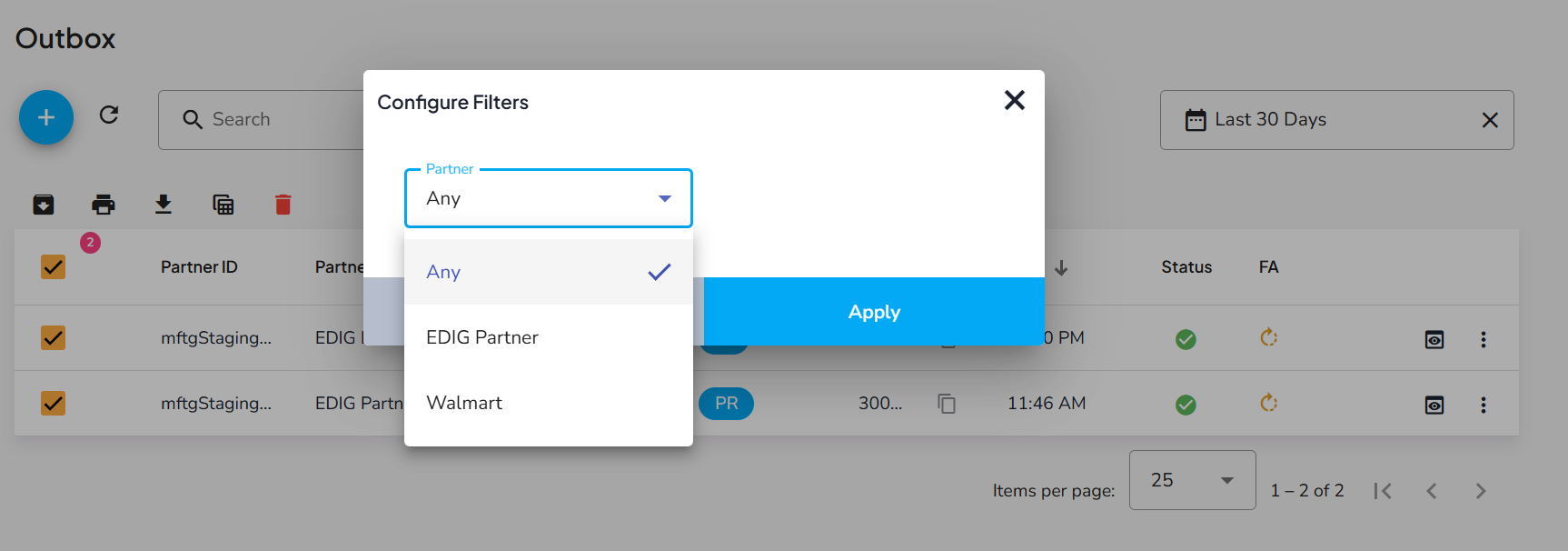
Filter By Partner
Filter outgoing EDIs by specific trading partners.
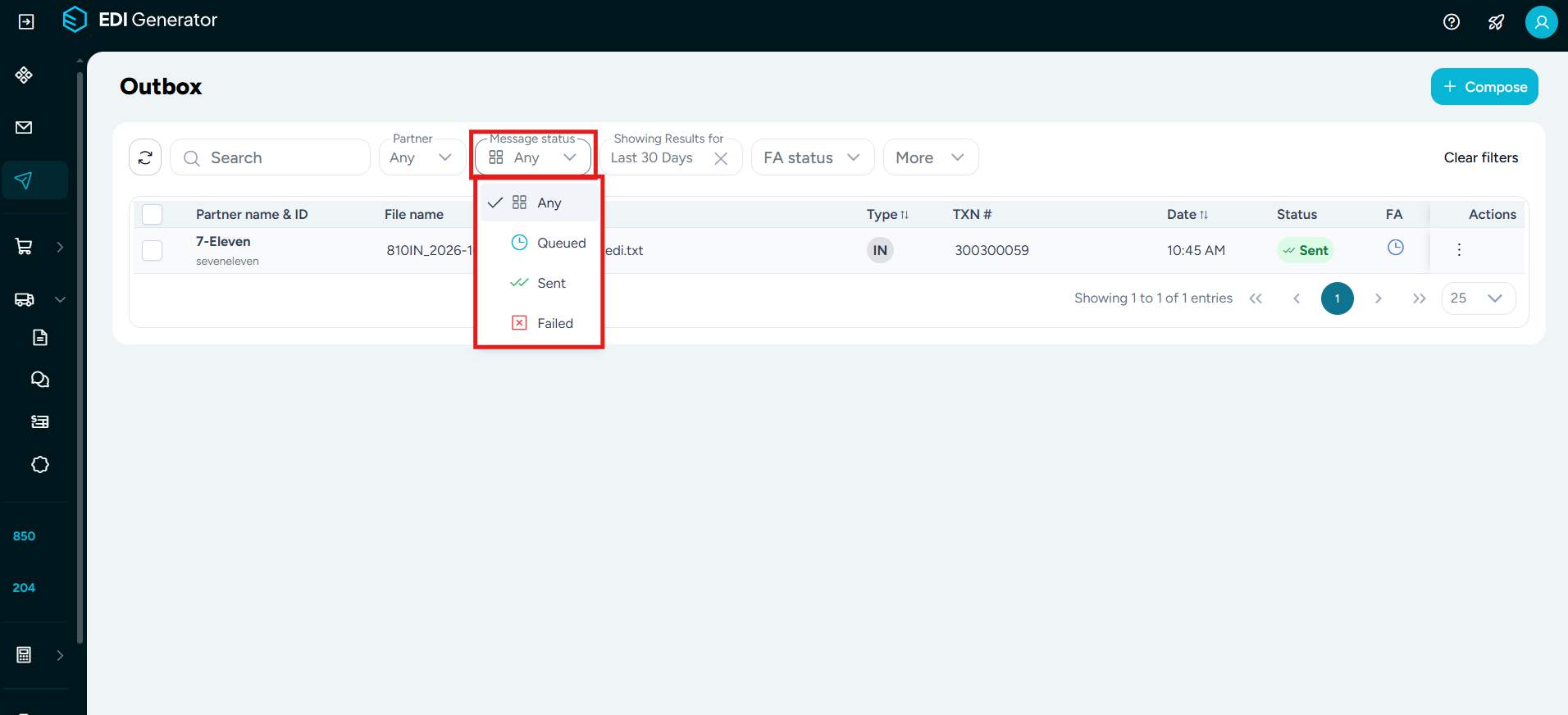
Filter by Message Status
Filter outgoing EDIs by delivery status (Queued, Sent or Failed).
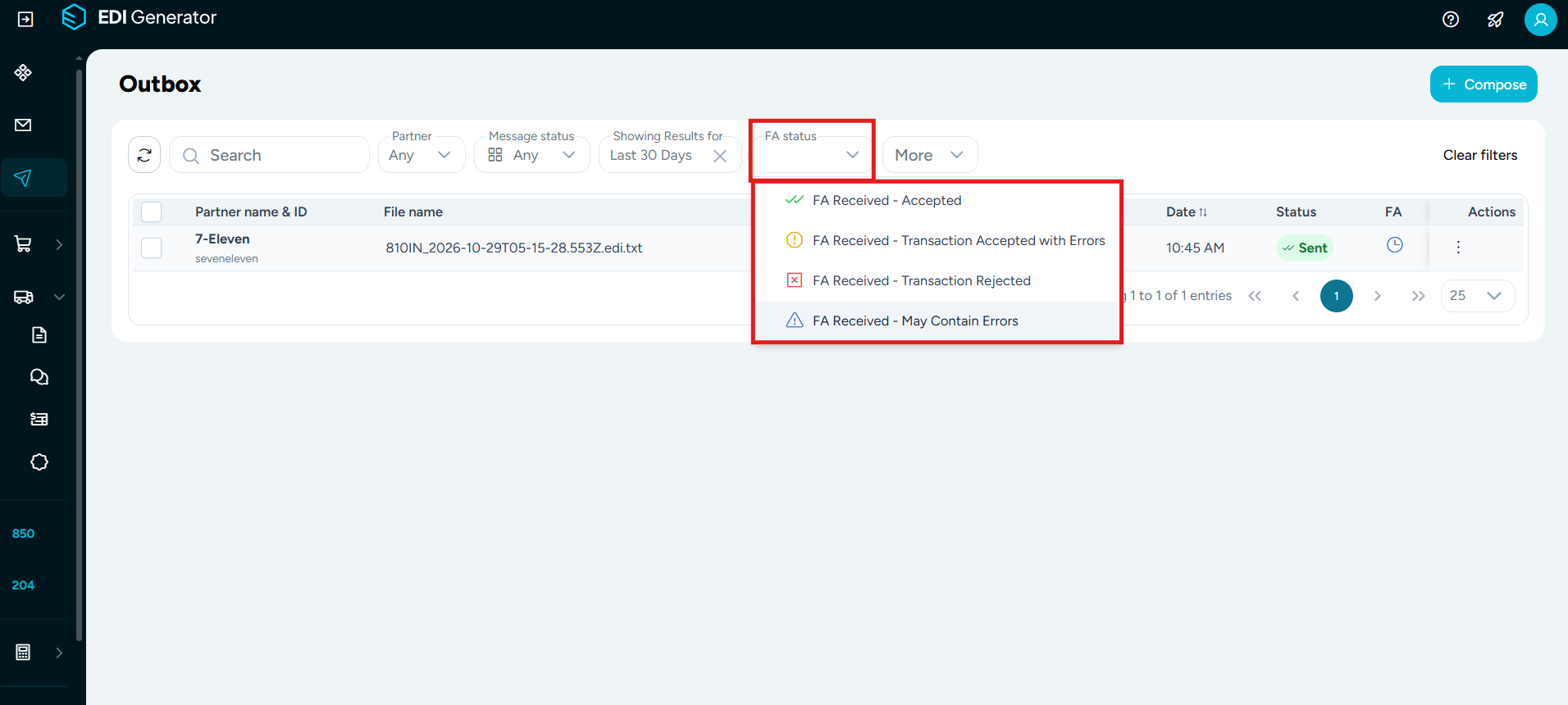
Filter by FA Status
Filter outgoing EDIs by the status of the Functional Acknowledgment (997/CONTRL) received from the partner:
- FA Received - Accepted – The partner accepted the EDI.
- FA Received - Transaction Accepted with Errors – The partner accepted the EDI, but it contained errors.
- FA Received - Transaction Rejected – The partner rejected the EDI.
- FA Received - May Contain Errors – The received FA EDI itself may contain errors.
More
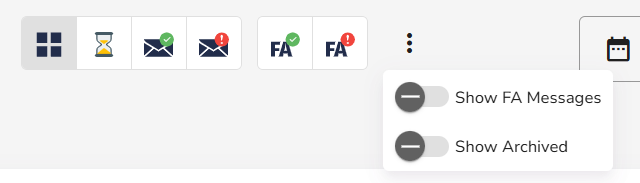
Use the options in the More dropdown to:
Show FA messages – Include sent Functional Acknowledgments (X12 997 or EDIFACT CONTRL) in the outbox list.
Show archived – Display only the archived Outbox messages.
Filter by Date
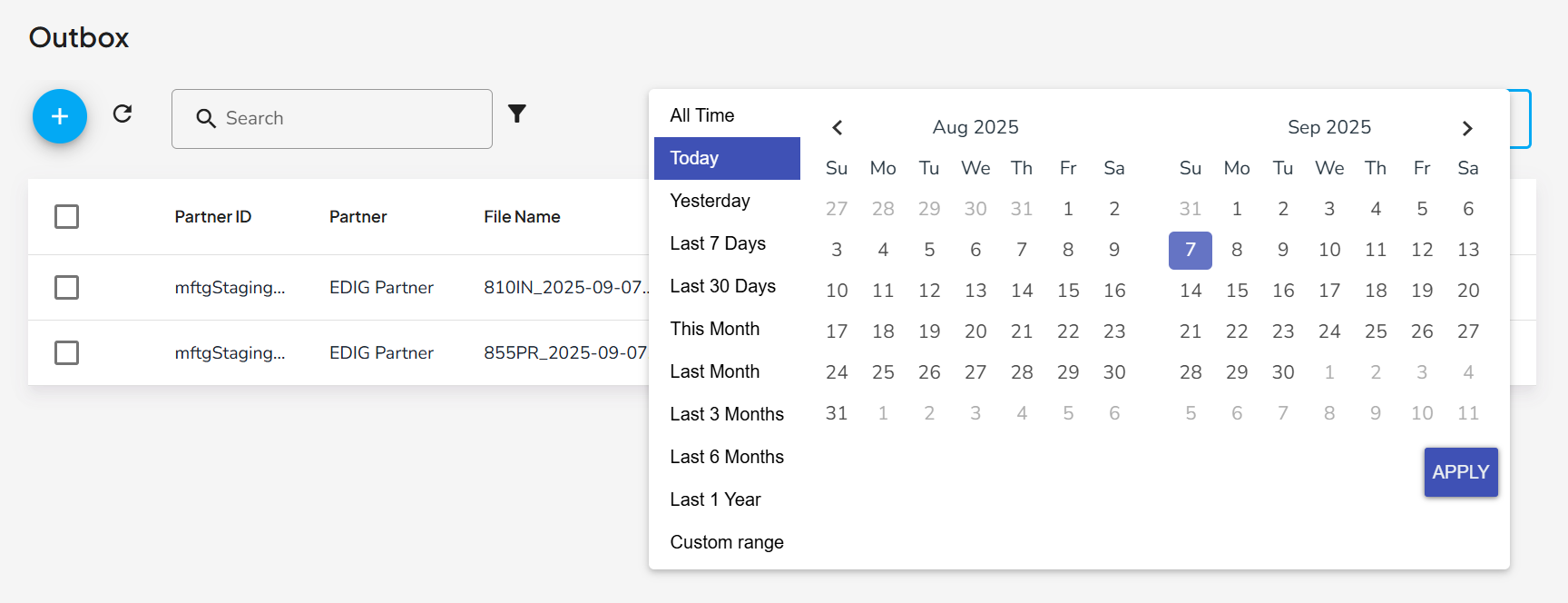
Use the Date range selector to filter the sent EDIs by a predefined or a custom date range.
Click Clear filters at the right of the toolbar to reset all applied filters.