
Adding a Client Mode Partner
1 What is a Client Mode Partner
A client mode partner represents a trading partner who hosts their own SFTP server. MFT Gateway stores the connection details and credentials for that server, connects to it whenever a file needs to be sent or retrieved, and records each transfer as an SFTP message in your MFT Gateway account.
Before you start, make sure you have the details listed in Before You Begin.
2 Creating a Client Mode Partner
Make sure that the SFTP is selected as a message service from the ‘Organization profile’. To add a client mode partner, select the ‘Partners’ option from the left navigation menu, select ‘SFTP’ from the service drop-down at the top of the page, then click the New SFTP Partner button in the upper right corner and choose Client Mode.
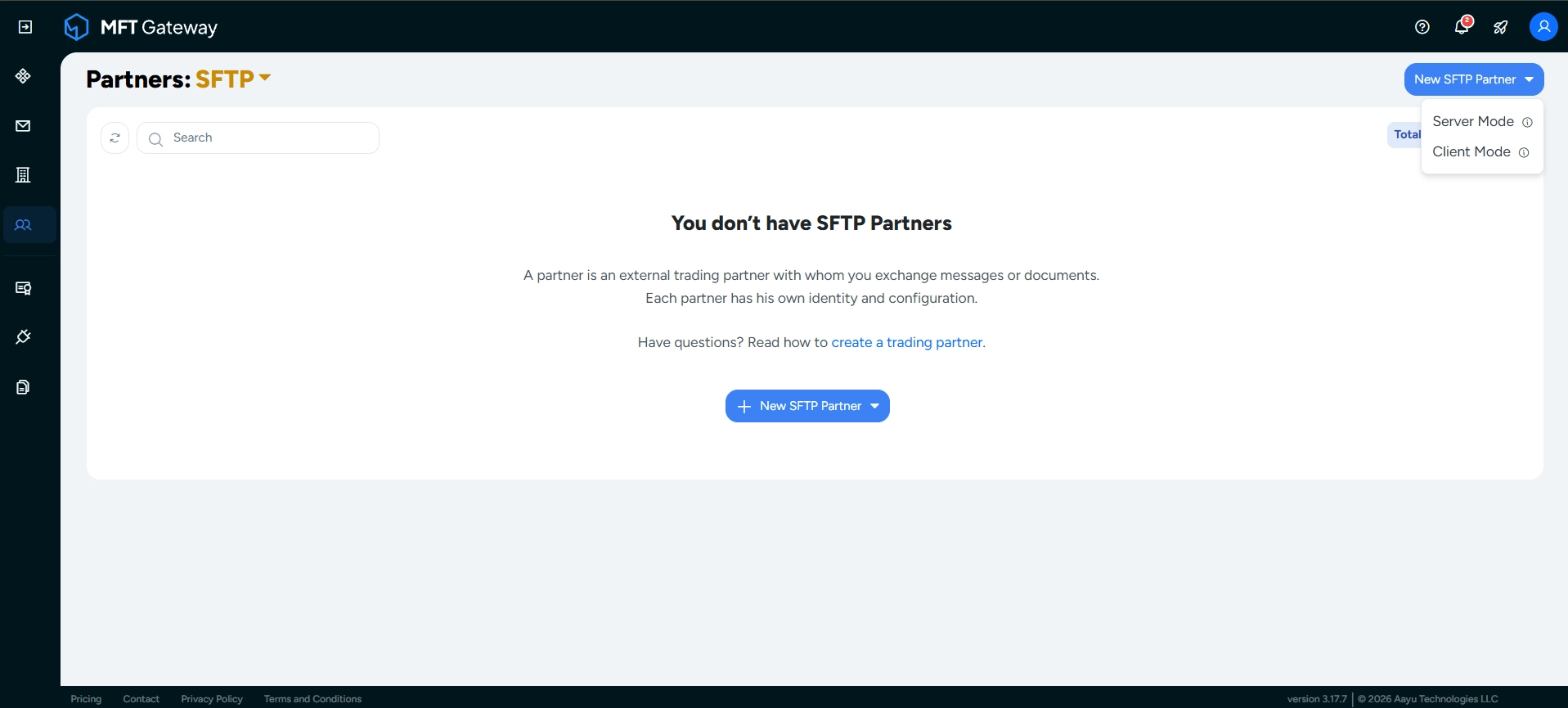
The Create SFTP Partner: Client view opens.
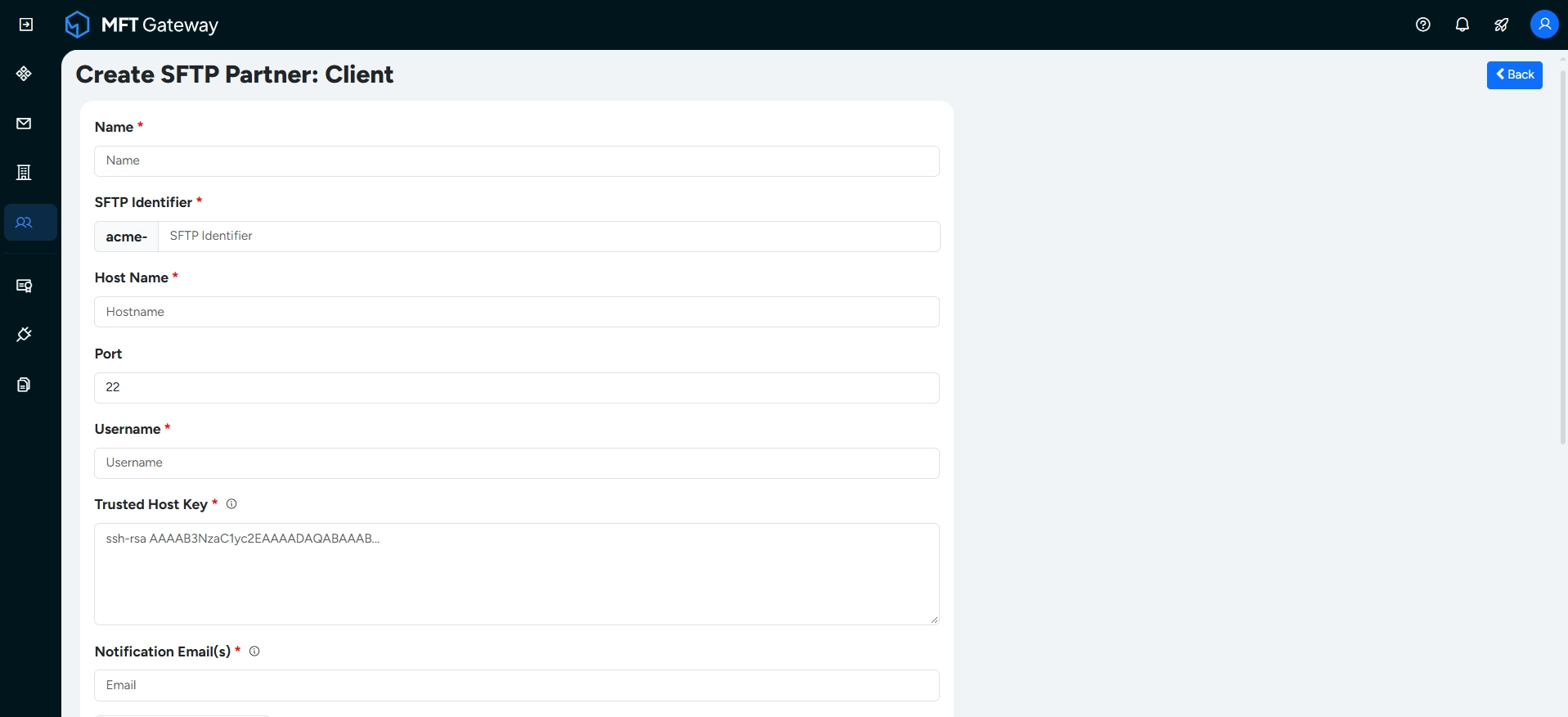
- Provide a Name for the trading partner. This is a textual identification that allows you to easily identify this partner from others in the system.
- Specify a unique SFTP Identifier for the partner. It is used to address SFTP messages to this partner and to name the partner’s directories in your MFT Gateway storage. MFT Gateway prefixes the given value with your account identity. The identifier can’t be changed after the partner is created.
- Enter the Host Name of your partner’s SFTP server, for example
sftp.example.com. IP addresses are not accepted. - Enter the Port of the SFTP server. The default is
22. - Enter the Username that MFT Gateway should use to log in to your partner’s SFTP server.
- Paste the Trusted Host Key of your partner’s SFTP server, for example
ssh-rsa AAAAB3NzaC1yc2EAAAADAQABAAAB.... MFT Gateway connects only if the server presents this key. - Give an email address(es) to receive Notification Email(s). You can enter up to three emails in a comma-separated form, without spaces in between.
- Configure the Outbound Settings and Inbound Settings tabs.
- Expand Advanced Options if you need to configure any advanced options. You can skip this section during the standard set-up. Refer to the Advanced Options section for details on these.
- Select the Authentication Type and enter the credentials, as described in Authentication.
- Once you’ve entered all of the needed information, click the Create button.
You will be returned to the SFTP partner list view after the partner is created. Client mode partners are marked with a Client tag.
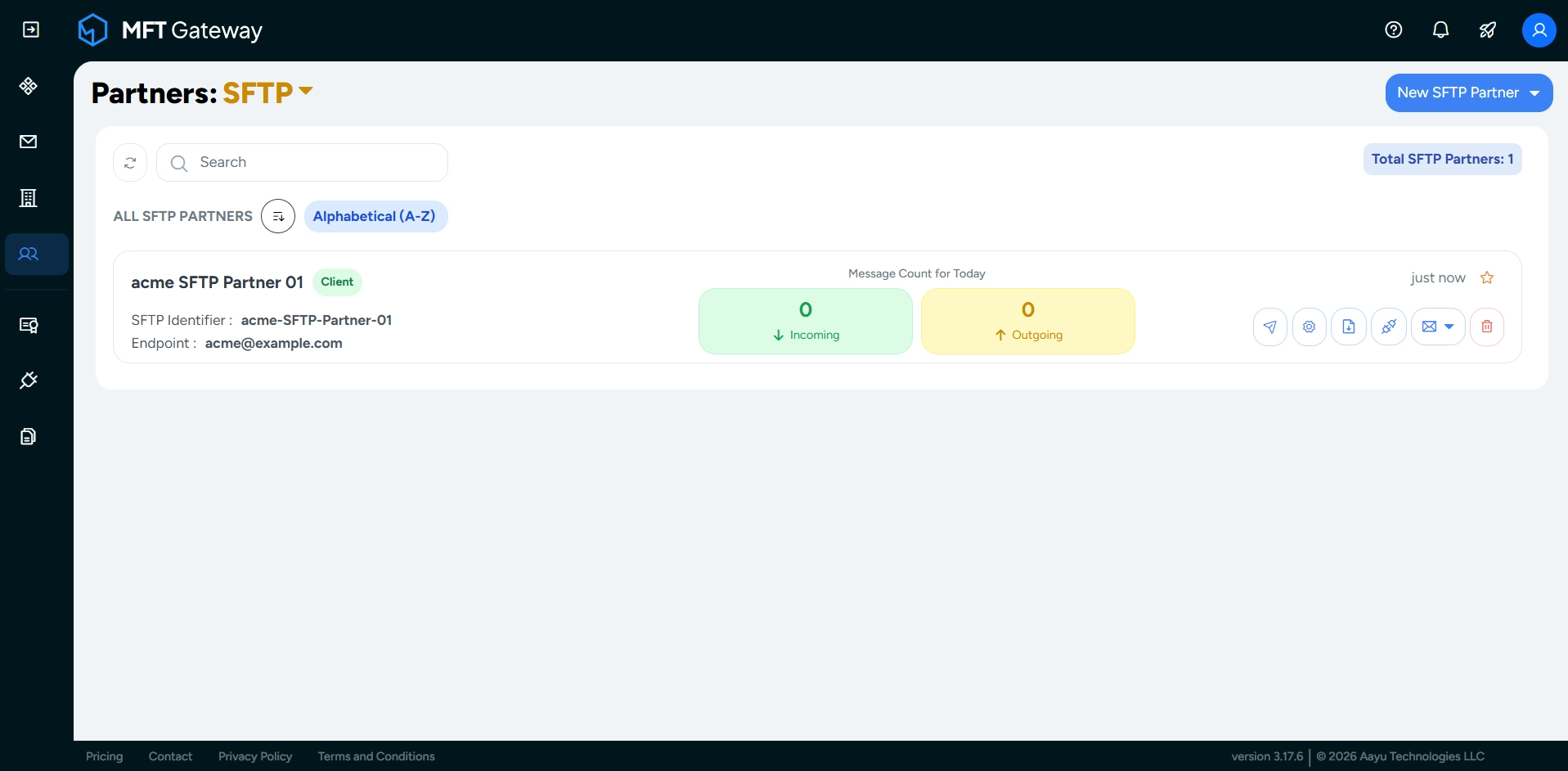
Important: Before you exchange any messages with the new partner, test the connection and make sure it succeeds.
3 Outbound Settings
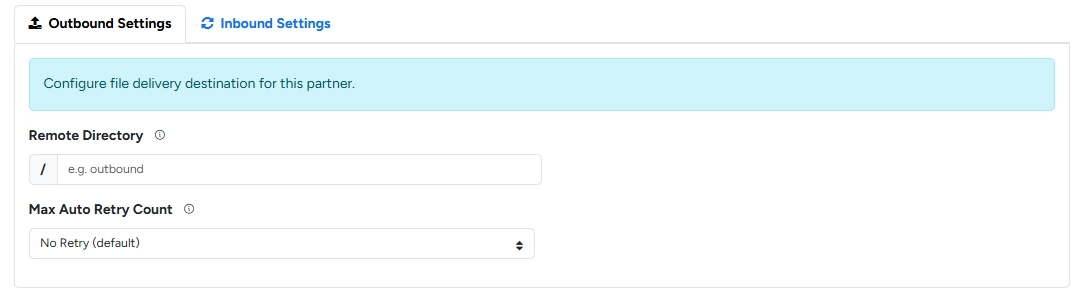
These settings control how MFT Gateway delivers the files you send to this partner.
- Remote Directory – the directory on your partner’s SFTP server that files are uploaded to, for example
outbound. The default is the root directory/. The directory must already exist on the server. - Max Auto Retry Count – how many times MFT Gateway automatically retries sending a message when it fails: No Retry (default), 3 retries, 5 retries or 10 retries. Retries use an exponential backoff, starting at 30 seconds and doubling each time, up to one hour between attempts. The limit applies to the message as a whole, not to each file it carries.
4 Inbound Settings
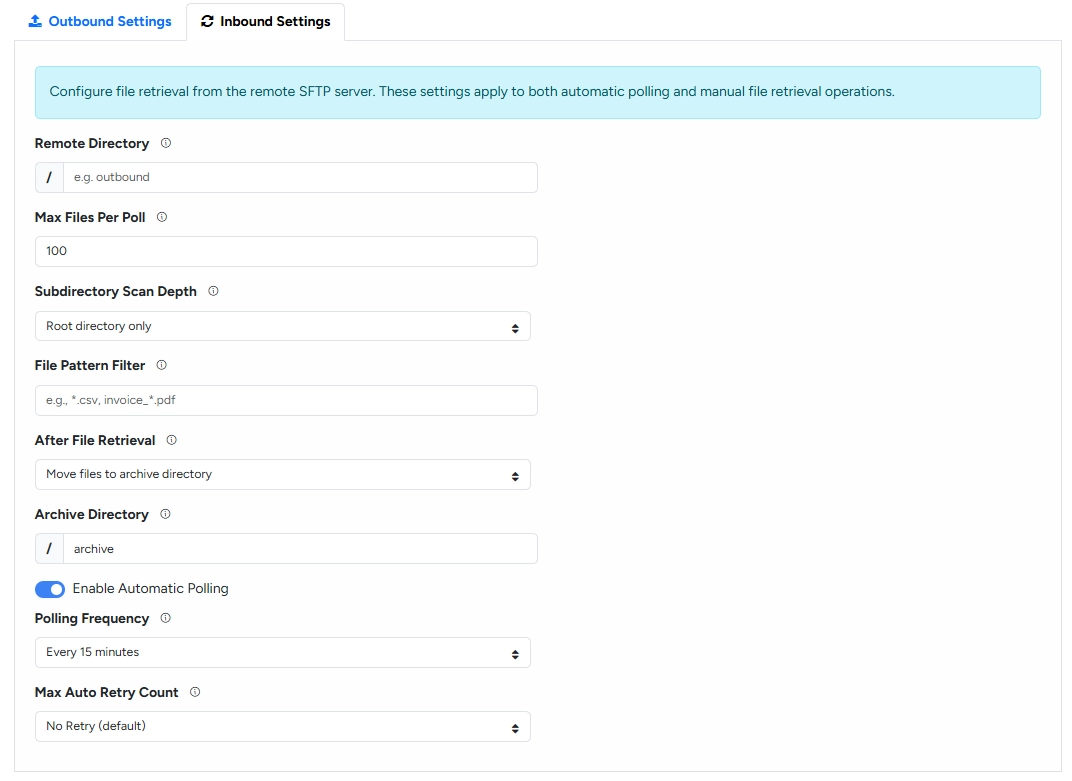
These settings control how MFT Gateway retrieves files from your partner’s SFTP server. They apply to both automatic polling and manual file retrieval.
- Remote Directory – the directory on your partner’s SFTP server to retrieve files from. The default is the root directory
/. - Max Files Per Poll – the maximum number of files retrieved in a single retrieval, from 1 to 1000. The default is 100. The oldest files are retrieved first; the remaining files are retrieved in the next retrieval.
- Subdirectory Scan Depth – how many levels of subdirectories below the remote directory are scanned for files. Currently only Root directory only is available, so files are retrieved from the remote directory itself and its subdirectories are not scanned. The deeper levels are shown in the list but are disabled. If you need files retrieved from subdirectories, contact us.
- File Pattern Filter – a pattern to retrieve only matching file names, for example
*.csvorinvoice_*.pdf. You can enter several patterns separated by commas. Matching is not case-sensitive. Leave it empty to retrieve all files. - After File Retrieval – what MFT Gateway does with each file on your partner’s server after retrieving it:
- Move files to archive directory (default) – moves the file to the Archive Directory (default
/archive). The archive directory must exist on the server. - Delete files from remote server – permanently deletes the file from your partner’s server.
Important: Deleted files can’t be recovered from MFT Gateway’s side. Make sure your partner keeps backups if needed.
- Move files to archive directory (default) – moves the file to the Archive Directory (default
- Enable Automatic Polling – turn on to retrieve files on a schedule. It is off by default, in which case files are retrieved only when you retrieve them manually.
- Polling Frequency – how often automatic polling runs: every 15 minutes (default), 30 minutes, hour, 2 hours, 6 hours, 12 hours or 24 hours. Shown only when automatic polling is enabled. See Automatic Polling for how the schedule works.
- Max Auto Retry Count – how many times MFT Gateway automatically retries a failed retrieval: No Retry (default), 1 retry, 2 retries or 3 retries. The limit covers both the retrieval and the after-retrieval action (move or delete).
5 Advanced Options
5.1 File Structure
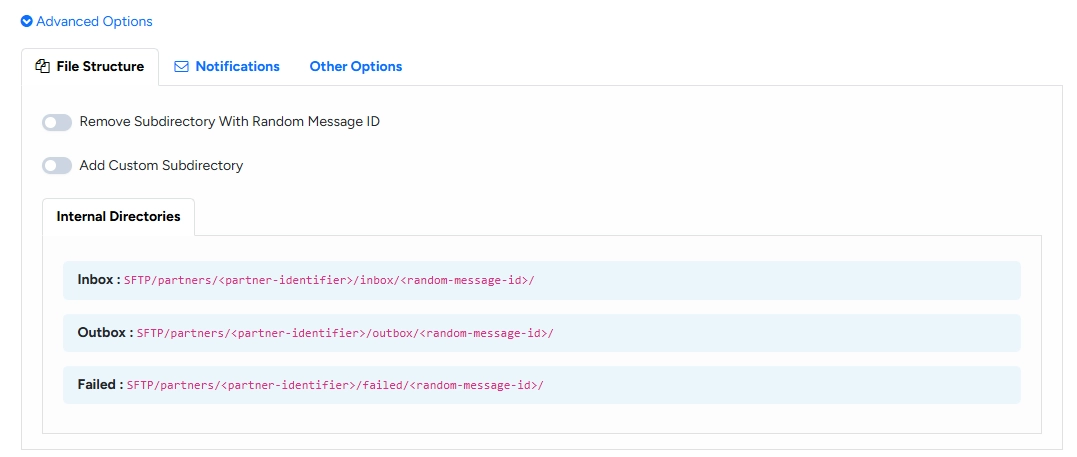
MFT Gateway stores the content of messages exchanged with this partner in your dedicated storage, under the following directories by default:
/SFTP/partners/(SFTP-Partner-ID)/inbox/(Random-Message-ID)/
/SFTP/partners/(SFTP-Partner-ID)/outbox/(Random-Message-ID)/
You can customize this structure with the Remove Subdirectory With Random Message ID and Add Custom Subdirectory options. They work the same way as for server mode partners; see File Structure. The Internal Directories tab shows the resulting inbox, outbox and failed directories.
These options affect only the directories in your MFT Gateway storage. They do not change the remote directories on your partner’s server.
5.2 Notifications
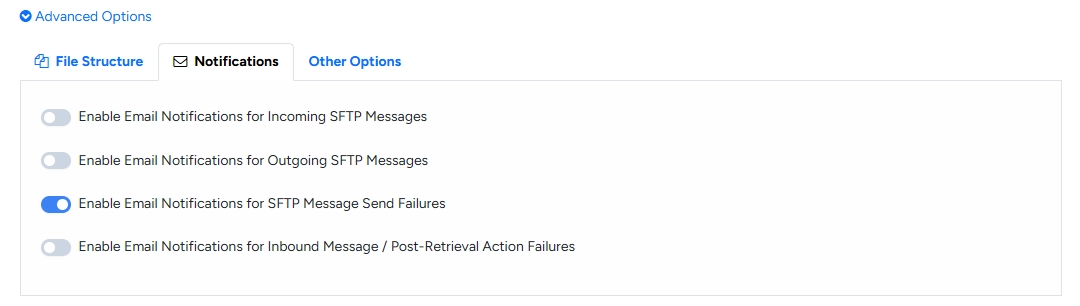
Choose to receive an email notification for events of interest:
- receipt of each incoming SFTP message from this partner
- sending of each outgoing SFTP message to this partner
- sending failures, when MFT Gateway fails to send a message to this partner (enabled by default)
- inbound message and post-retrieval action failures, when MFT Gateway fails to retrieve a file from your partner’s server, or fails to move or delete it after retrieval
Note: Retrieval failures don’t appear as messages in the web console. Enable the inbound failure notification if you want to be informed of them.
5.3 Other Options
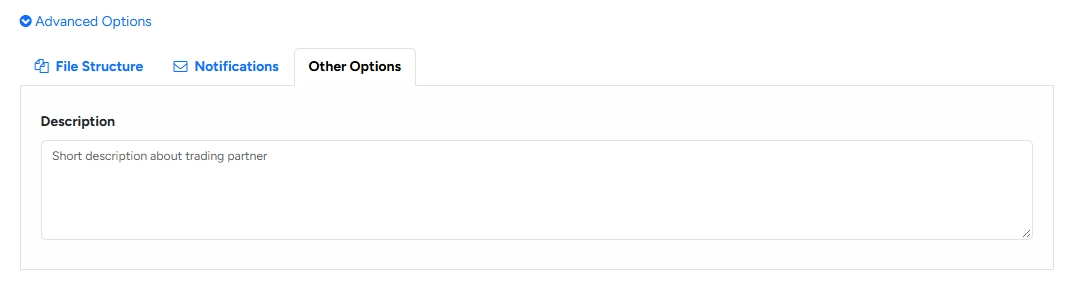
You can provide a description for this trading partner here.
6 Authentication

Select the Authentication Type your partner’s SFTP server requires:
- Password – enter the user’s Password.
- SSH Private Key – enter the user’s Private Key, either by pasting it or by clicking browse to upload the key file.
- SSH Private Key + Password – for servers that require both a key and a password. Enter both the Password and the Private Key.
If the private key is protected with a password, turn on Add password for private key and enter the Private Key Password.
MFT Gateway stores these credentials securely and uses them only to connect to your partner’s server. They are not shown again after the partner is created.
7 Testing the Connection
After the partner is created, check that MFT Gateway can connect to your partner’s SFTP server before you send or retrieve any files.
- If your partner’s SFTP server is behind a firewall, open the partner’s manage view and share the Outbound Static IPs with your partner, so that they can allow MFT Gateway to connect.
On the client mode partner card, click the test connection button. You can also click Test Connection on the partner’s manage view.
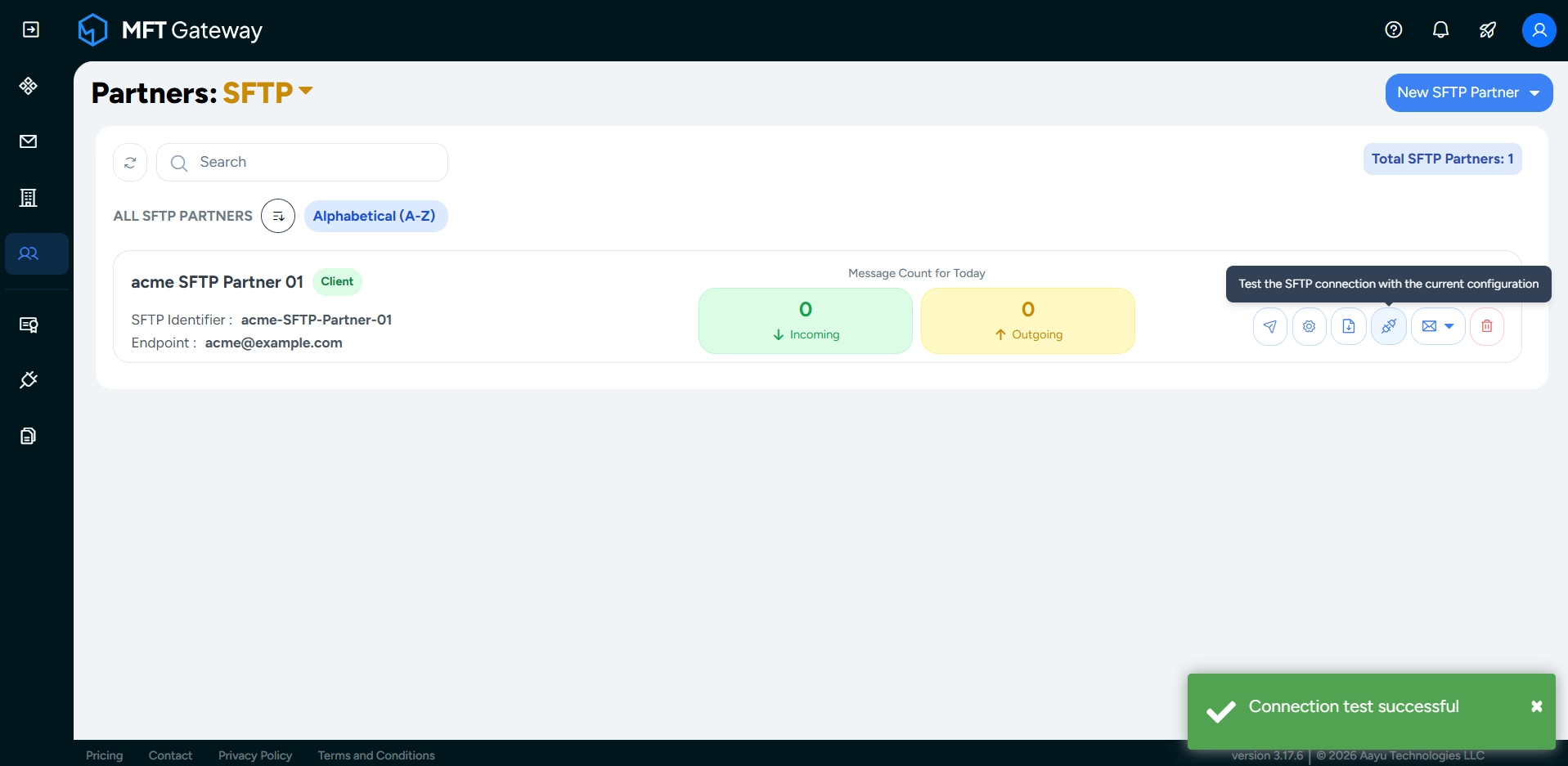
- Wait for the result. Connection test successful means the partner is ready to use.
If you see any connection failures, check the host name, port, username, trusted host key and credentials, and confirm with your partner that MFT Gateway’s outbound static IPs are allowed through their firewall. See Testing the Connection for details.
Note: A connection problem makes outgoing messages fail with an email notification, but it stops retrievals without any notification. Test the connection again whenever you change the partner’s connection details.
Once the connection test succeeds, you can send messages to the partner and receive messages from it.