Creating Invoices (EDI INVOIC)
The Invoice (EDI INVOIC) is a transaction sent by a supplier to a buyer to request payment for goods delivered or services rendered. In modern retail supply chains, invoicing electronically is a critical step in completing the order fulfillment cycle.
This guide walks you through the steps of creating an EDI INVOIC in the EDI Generator, with a focus on creating one from scratch using GS1 EANCOM 2022 standards edition 2016 INVOIC specification .
Creating an EDI INVOIC from Scratch
If you need to initiate an Invoice creation, follow the below steps for a real world scenario.
Scenario Context
- Partner: IKEA
- Invoice Type: Commercial Invoice
- Invoice Number:
INV-987654 - Invoice Date: Current Date
- PO Number:
1252448667 - PO Date:
2026-07-18 - Delivery Note Number:
DN-556677(dated2026-08-05) - Buyer (IKEA): GLN
7318280010002, VAT numberBE0417352939 - Supplier (you): GLN
5412345500001, VAT numberNL812345678B01 - Delivery Party: GLN
7318280010026 - Delivery Terms:
DDP(INCOTERMS) - Header Charge: Freight
120.00EUR - VAT Rate:
21%standard rate on all lines and charges - Line 1: GTIN
7318280450129, Quantity100Cases at a net unit price of15.50 - Line 2: GTIN
7318280450235, Quantity40Cases at a gross unit price of22.00with a10%allowance
Start Invoice Creation
- In the side menu, navigate to INVOIC Invoice message (or Outgoing Types > INVOIC Invoice message if nested).
- Click the Create button in the top-right corner.
- Select your partner (e.g., IKEA) from the dropdown.
- The EDI editor will load the structure for the INVOIC document.
For a detailed guide on how the EDI Editor interface works (including how to add segment iterations, use Basic or Advanced loop modes, and locate validation errors), see Create New EDI File.
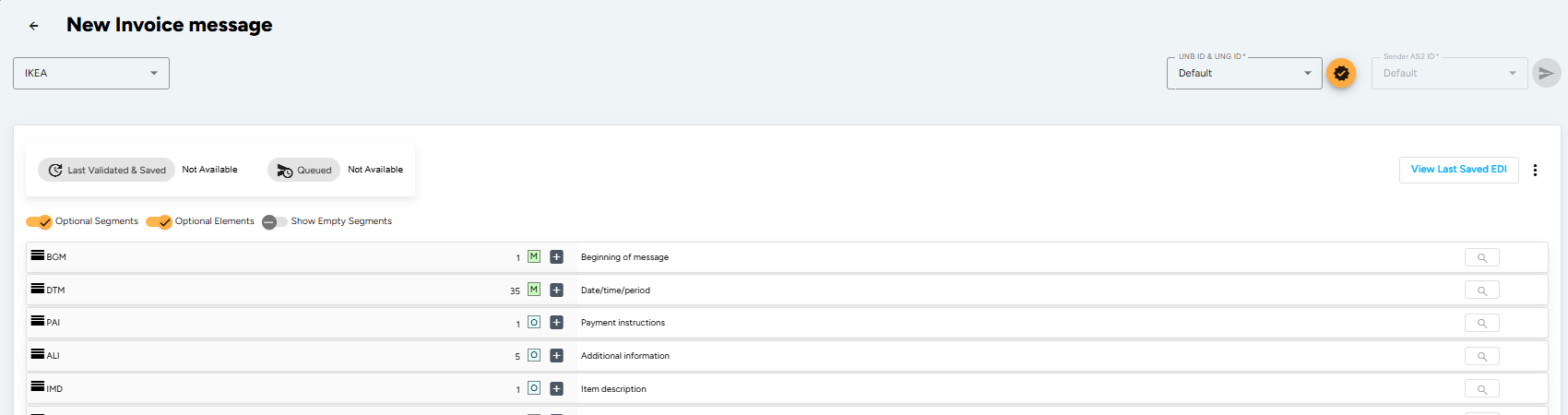
The UNA, UNB and UNH service segments (service string advice, interchange header and message header) are generated automatically by the EDI Generator from the partner profile you selected. You only fill in the segments described below, starting at BGM.
Enter Invoice Beginning Details (BGM Segment)
The BGM segment starts the invoice with the type of the invoice and the invoice number:
- Document/message Name, Coded (BGM010-01): Enter
380for a Commercial Invoice. - Document/message Name Number (BIG020): Enter your unique invoice number.
Enter Invoice Date Time Period Details (DTM Segment)
The DTM segment specifies the date or period of the invoice. It may also be used to specify the date on which the goods were dispatched, delivered, or received.
- Date/time/period Qualifier (DTM010-01): Enter
137for the Invoice date - Date/time/period (DTM010-02): Current Date in the format CCYYMMDD
- Date/time/period Format Qualifier (DTM010-03): Enter
102to specify the format you used as CCYYMMDD
Enter Reference Information (REF Loop)
The REF loop is used to specify references which relate to the whole invoice, for example, Purchase Order Numbers, Delivery Numbers, etc.
- Add iterations on the REF segment row to add the required qualifiers:
- Buyer’s Purchase Order Number:
- Reference Qualifier (REF010-01): Enter
ONfor Buyer’s Purchase Order Number. - Reference Number (REF010-02): Enter the Purchase Order Number buyer has specified.
- Date/time/period Qualifier (DTM010-01): Enter
171for date time reference - Date/time/period (DTM010-02): Purchase Order Date in the format CCYYMMDD
- Date/time/period Format Qualifier (DTM010-03): Enter
102to specify the format you used as CCYYMMDD
- Reference Qualifier (REF010-01): Enter
- Delivery Note Number (optional, add another iteration):
- Reference Qualifier (RFF010-01): Enter
DQfor Delivery Note Number. - Reference Identifier (RFF010-02): Enter the dispatch advice / delivery note number.
- Add a DTM with qualifier
171for the delivery date.
- Reference Qualifier (RFF010-01): Enter
Define Party Identification (NAD Loop)
The NAD Loop identifies the trading parties involved in the invoice. Identification of the Buyer (BY) and the Supplier (SU) is mandatory. The delivery party must be specified if it differs from the buyer’s address.
- Locate the NAD Loop in the editor.
- Buyer (BY):
- Party Qualifier (NAD010): Select
BY(Buyer). - Party Id. Identification (NAD020-01): Enter the 13-digit GLN of the buyer.
- Code List Responsible Agency, Coded (NAD020-03): Select
9(GS1).
- Party Qualifier (NAD010): Select
- Supplier (SU):
- Add another iteration to add the supplier details.
- Party Qualifier (NAD010): Select
SU(Supplier). - Party Id. Identification (NAD020-01): Enter your 13-digit supplier GLN.
- Code List Responsible Agency, Coded (NAD020-03): Select
9(GS1).
- Delivery Party (DP):
- Add another iteration for the location the goods were delivered to.
- Party Qualifier (NAD010): Select
DP(Delivery party). - Party Id. Identification (NAD020-01): Enter the 13-digit GLN of the delivery location.
- Code List Responsible Agency, Coded (NAD020-03): Select
9(GS1).
Add Party References (RFF under NAD)
The RFF segment nested inside the NAD loop carries references that belong to that party only, most commonly the VAT registration number.
- Expand the RFF row under the Buyer (BY) NAD iteration:
- Reference Qualifier (RFF010-01): Enter
VAfor VAT registration number. - Reference Number (RFF010-02): Enter the buyer’s VAT registration number.
- Reference Qualifier (RFF010-01): Enter
- Repeat under the Supplier (SU) NAD iteration with your own VAT registration number.
Specify the Invoicing Currency (CUX Segment)
The CUX segment states the currency of the invoice. It is mandatory for international exchanges. Only one occurrence is needed when no currency conversion is involved.
- Currency Details Qualifier (CUX010-01): Enter
2(Reference currency). - Currency, Coded (CUX010-02): Enter the ISO 4217 three-alpha code (e.g.
EUR). - Currency Qualifier (CUX010-03): Enter
4(Invoicing currency).
Enter Terms of Payment (PAT Loop)
The PAT Loop specifies the payment terms for the whole invoice.
- Basic terms (first iteration):
- Payment Terms Type Qualifier (PAT010): Enter
1(Basic). - Payment Time Reference, Coded (PAT030-01): Enter
5(Date of invoice). - Time Relation, Coded (PAT030-02): Enter
3(After reference). - Type of Period, Coded (PAT030-03): Enter
D(Day),Mfor months,WDfor working days. - Number of Periods (PAT030-04): Enter the number of periods, e.g.
30. - DTM: Enter Date/time/period qualifier
13(Terms net due date), the calculated due date and format102to add a due date for the payment.
- Payment Terms Type Qualifier (PAT010): Enter
- Discount terms (add another iteration):
- Payment Terms Type Qualifier (PAT010): Enter
22(Discount). - Fill PAT030 the same way as above for the discount period.
- DTM: Enter qualifier
12(Terms discount due date/time) with the discount cut-off date. - PCD: Enter Percentage Qualifier (PCD010-01)
12(Discount), Percentage (PCD010-02) e.g.2, and Percentage Basis, Coded (PCD010-03)13(Invoice value). - Optionally add MOA with qualifier
21(Cash discount) to state the discount as an amount. Enter Terms of Delivery (TOD Segment)
The TOD segment specifies the delivery/transport terms for the complete invoice.
- Terms of Delivery or Transport Function, Coded (TOD010): Enter
6(Delivery condition) or3(Price and dispatch condition). - Terms of Delivery or Transport, Coded (TOD030-01): Enter the INCOTERM, e.g.
DDP,CIF,EXW.
- Terms of Delivery or Transport Function, Coded (TOD010): Enter
- Payment Terms Type Qualifier (PAT010): Enter
Add Invoice-Level Allowances and Charges (ALC Loop)
The ALC Loop carries allowances and charges that apply to the whole invoice, such as freight or packaging costs.
- Allowance or Charge Qualifier (ALC010): Enter
C(Charge) orA(Allowance). - Settlement, Coded (ALC030): Enter
6(Charge to be paid by customer) or5(Charge to be paid by vendor). - Special Services, Coded (ALC050-01): Enter the type, e.g.
FC(Freight charge),HD(Handling),QD(Quantity discount),CAC(Cash discount). - MOA: Enter Monetary Amount Type Qualifier (MOA010-01)
23(Charge amount) and the amount in MOA010-02.
Add Invoice Line Items (LIN Loop)
The LIN Loop contains the details of the items being invoiced. At least one occurrence of LIN is required in an invoice. Each item starts with a new LIN segment.
- Line Item (LIN):
- Line Item Number (LIN010): Enter a sequential line number starting at
1. - Item Number (LIN030-01): Enter the GTIN of the article being invoiced. Where a GTIN exists, its use in LIN is mandatory.
- Item Number Type, Coded (LIN030-02): Enter
SRV(GS1 Global Trade Item Number).
- Line Item Number (LIN010): Enter a sequential line number starting at
- Quantity (QTY Segment):
- Quantity Qualifier (QTY010-01): Enter
47(Invoiced quantity). Add further iterations with46(Delivered quantity) or12(Dispatch quantity) where they differ. - Quantity (QTY010-02): Enter the quantity, e.g.
100.
- Quantity Qualifier (QTY010-01): Enter
- Monetary Amount (MOA Loop):
- Monetary Amount Type Qualifier (MOA010-01): Enter
203(Line item amount). - Monetary Amount (MOA010-02): Enter the net amount for the items mentioned in the LIN segment.
- Monetary Amount Type Qualifier (MOA010-01): Enter
- Price Details (PRI Loop):
- Price Qualifier (PRI010-01): Enter
AAA(Calculation net — includes all allowances and charges, excludes tax) orAAB(Calculation gross — excludes allowances, charges and tax, so allowances must be stated for net calculation). - Price (PRI010-02): Enter the unit price, e.g.
15.50. - Price Type, Coded (PRI010-03): Enter
CA(Catalogue) orCT(Contract).
- Price Qualifier (PRI010-01): Enter
- Line Tax (TAX Loop):
- Duty/tax/fee Function Qualifier (TAX010): Enter
7(Tax). - Duty/tax/fee Type, Coded (TAX020-01): Enter
VAT(Value added tax) orGST. - Duty/tax/fee Rate (TAX050-04): Enter the rate, e.g.
21. - Duty/tax/fee Category, Coded (TAX060): Enter
S(Standard rate),E(Exempt) orA(Mixed rate). - MOA: Enter qualifier
124(Tax amount) with the tax due on the line.
- Duty/tax/fee Function Qualifier (TAX010): Enter
- Line Allowances or Charges (ALC Loop):
- If there are item-level discounts, credits, or charges, add an ALC iteration with ALC010 =
A/Cand the type in ALC050-01 (e.g.QDQuantity discount). - Specify the value with PCD using qualifier
1(Allowance) plus the percentage, or with MOA for a fixed amount.
- If there are item-level discounts, credits, or charges, add an ALC iteration with ALC010 =
Close the Detail Section (UNS and CNT Segments)
The UNS segment marks the break between the detail and the summary section, and CNT provides control information for checking on the message receiver’s in-house system.
- Section Identification (UNS010): Enter
S(Detail/summary section separation). - Control Qualifier (CNT010-01): Enter
2(Number of line items in message). Use1for the total of line-level quantities,7for total gross weight or11for total number of packages. - Control Value (CNT010-02): Enter the amount
Set Invoice Totals (MOA Loop - SG50)
The MOA Loop is used to detail prepaid amounts, or total monetary values due for the entire invoice. It is mandatory — add one iteration per amount type.
| Moneytary Amount Type Qualifier (MOA010-01) | Meaning |
|---|---|
86 | Message total monetary amount (invoice grand total) |
79 | Total line items amount (net, tax exclusive) |
125 | Taxable amount |
176 | Message total duty/tax/fee amount |
131 | Total charges/allowances |
129 | Total amount subject to payment discount |
The segments and element rules detailed above represent a sample IKEA INVOIC specification scenario. Depending on your partner, the required qualifiers, tax codes, and net pricing formats can vary. The EDI Generator automatically aligns the editor form fields and validation rules to match whichever partner definition you select.
3. Validate, Save, and Send
- Once all details are filled, click the Validate and Save button in the top-right corner.
- The EDI Generator will check your document against the syntax and validation rules defined in the IKEA INVOIC specification.
- If there are validation errors, correct the pointed out segments and re-validate.
- Once the validation is successful, click Send to transmit the INVOIC Invoice to IKEA.