


Hosted SaaS solution for AS2 and SFTP file transfer. No infrastructure, instant setup.
Start Free Trial
MFT Gateway 3.16.7 introduces multi-attachment support for S3/SFTP integrations, the ability to temporarily disable stations, MDN retry options, expanded REST API controls for AS2 partners, and more.
Published: 22 Jul 2026
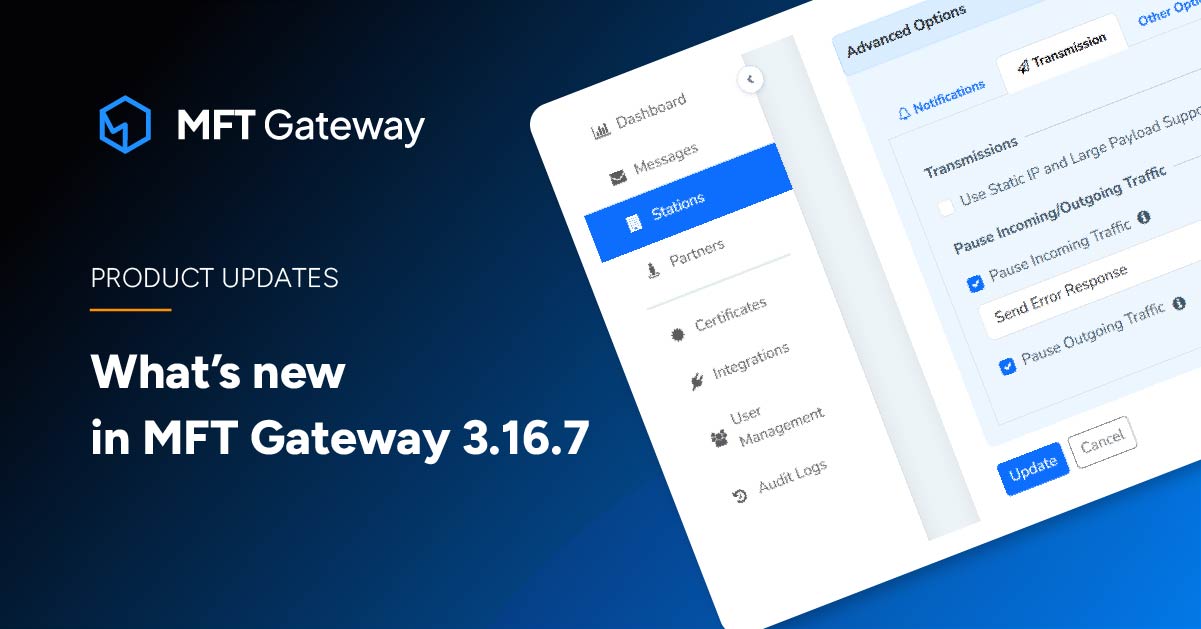
As the world’s first Serverless Managed File Transfer software on AWS, Aayu Technologies LLC has recently released MFT Gateway 3.16.7; the latest update introducing new features such as the ability to send multiple attachments in a message via S3 and SFTP Integrations, an option to temporarily disable a station, a new REST API endpoint to add an SFTP partner to Webhook Integration and more. Let’s dive into the new version to explore what’s new.
MFT Gateway now supports sending multiple attachments in a single AS2 or SFTP message through S3 and SFTP integrations. This enhancement addresses a key need for enterprises that exchange batches of files with trading partners. Previously, users had to zip multiple attachments into a single file before sending them via S3 or SFTP Integrations. New enhancement not only simplifies bulk file transfers and reduces overhead, but it also improves automation workflows. By removing the need for manual zipping, automated pipelines can pass files straight through to MFT Gateway, making end‑to‑end processes faster, cleaner, and easier to maintain.
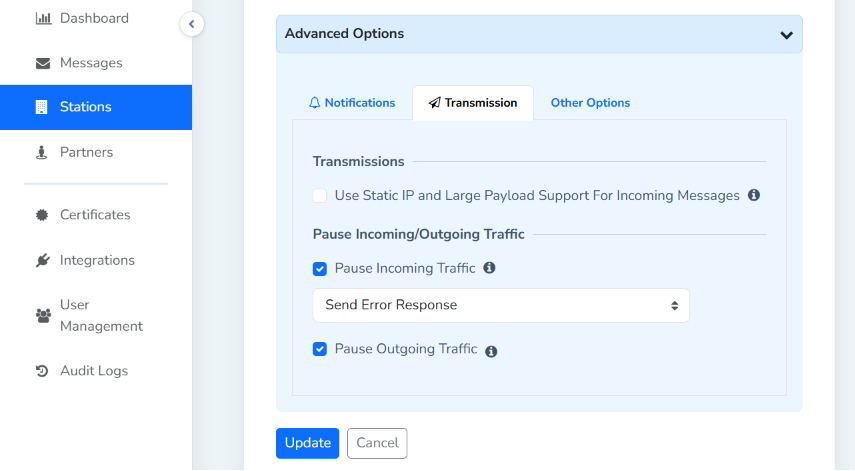
Stations can now be marked as disabled directly from MFT Gateway, without needing to delete or reconfigure them. This is especially useful when a trading partner relationship is paused, a station is undergoing maintenance, or a connection needs to be temporarily taken offline for troubleshooting. Disabling a station stops message processing through it while preserving all of its configuration, certificates, and history, so it can be re-enabled instantly whenever it’s needed again.
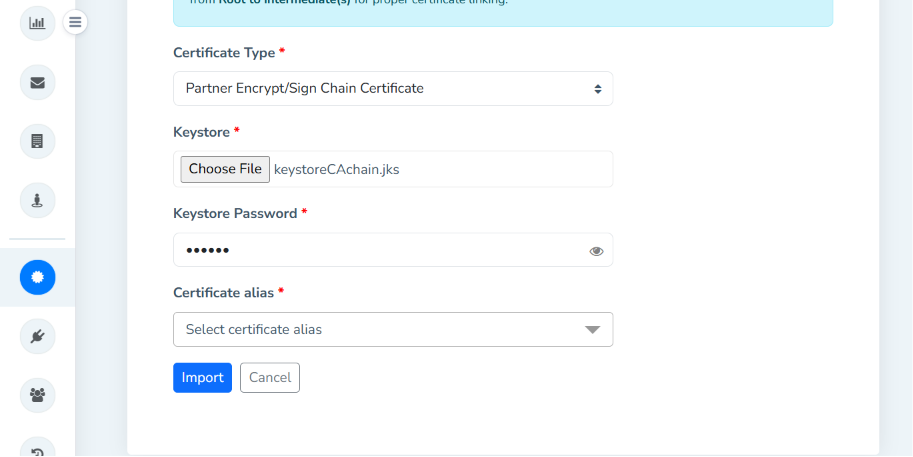
Importing certificates just got more flexible. MFT Gateway now offers REST API support for importing chain public certificates directly from a keystore, making it easier to automate certificate provisioning as part of larger integration or deployment pipelines.
| Method: | POST |
| Endpoint: | https://api.mftgateway.com/certificate/partner/fromKeystore |
| Mandatory Headers: | Authorization - Authorization header with auth token |
| Mandatory Query Parameters: | isChain - Partner chain certificate. Allowed values: ‘true’, ‘false’ (Boolean | Default: false) |
| Mandatory fields: | keystore - Base64 encoded keystore (String) keystorePassword - Keystore password (String) aliases - An array of aliases composing the certificate chain (Array) |
| Method: | POST |
| Endpoint: | https://api.mftgateway.com/certificate/https/fromKeystore |
| Mandatory Headers: | Authorization - Authorization header with auth token |
| Mandatory Query Parameters: | isChain - HTTPS chain certificate. Allowed values: ‘true’, ‘false’ (Boolean | Default: false) |
| Mandatory fields: | keystore - Base64 encoded keystore (String) keystorePassword - Keystore password (String) aliases - An array of aliases composing the certificate chain (Array) |
Alongside the REST API changes, the web app now allows users to select multiple aliases at once when importing encryption or HTTPS certificate chains from an existing keystore, cutting down on repetitive manual imports and making it simpler to onboard partners or rotate certificates in bulk.
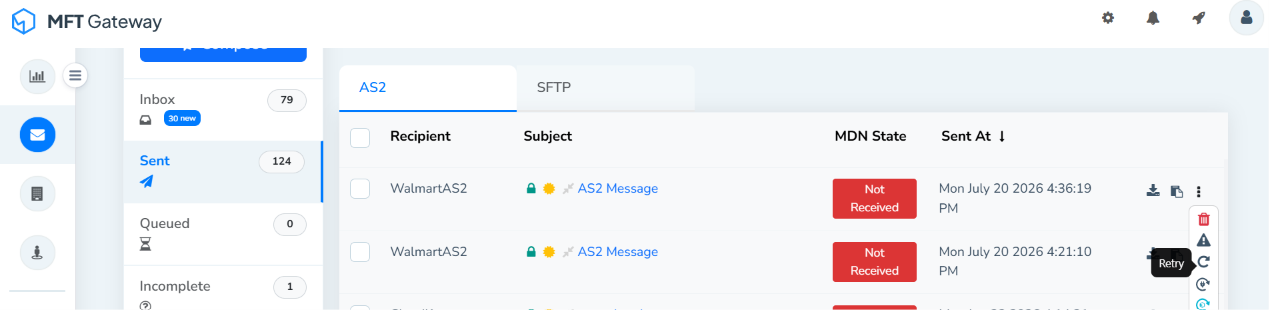
Keeping track of message delivery confirmations is critical in AS2 exchanges. With this release, users can now retry sent messages that are stuck in a Not Received or Pending MDN status directly from MFT Gateway, without needing to resend the entire message manually. This gives teams a faster, more reliable way to resolve stalled deliveries and reduces the operational overhead of chasing down unacknowledged messages with trading partners.
AS2 partner configurations can now be managed more completely through the REST API. Users can add, update, or remove header profiles as part of AS2 partner create and update requests, enabling fuller partner lifecycle management through automation. This is a welcome improvement for teams that provision or maintain partner configurations programmatically, as it removes the need to switch to the web app for header profile changes.
| Method: | POST |
| Endpoint: | https://api.mftgateway.com/partner |
| Mandatory Headers: | Authorization - Authorization header with auth token |
| Mandatory Query Parameters: | service - as2 (String) |
| Mandatory fields: | identifier - Partner identifier (String) name - Partner name (String) encryptionCertificate - Base64 encoded encryption certificate (Base64 encoded String) url - Trading partner message delivery endpoint (String) |
| Optional fields: | headerProfiles - Custom transport headers to be included in the outbound messages to this trading partner. Each object should define the header profile name, whether the profile is set as default, and the corresponding header name/header value pairs to be applied. (Object Array) default - Indicates whether the header profile is set as the default profile to be applied for outbound messages. (Boolean) headerProfileName - The unique name of the header profile. (String) headers - The list of custom transport headers associated with the profile. (Object Array) headerName - The name of the custom transport header to be included in the outbound message. (String) headerValue - The value to be assigned to the corresponding header name in the outbound message. (String) |
| Method: | PUT |
| Endpoint: | https://api.mftgateway.com/partner |
| Mandatory Headers: | Authorization - Authorization header with auth token |
| Mandatory Query Parameters: | service - as2 (String) |
| Mandatory fields: | identifier - Partner identifier (String) |
| Optional fields: | headerProfiles - Custom transport headers to be included in the outbound messages to this trading partner. Each object should define the header profile name, whether the profile is set as default, and the corresponding header name/header value pairs to be applied. (Object Array). To add a new header profile or modify an existing one, you must include all existing profiles along with the new or updated profile. To remove all header profiles, pass an empty array ([]). (Object Array) default - Indicates whether the header profile is set as the default profile to be applied for outbound messages. (Boolean) headerProfileName - The unique name of the header profile. (String) headers - The list of custom transport headers associated with the profile. (Object Array) headerName - The name of the custom transport header to be included in the outbound message. (String) headerValue - The value to be assigned to the corresponding header name in the outbound message. (String) |
Prior to the new release, content type overrides configured for the AS2 Partners were applied to the messages composed via web app. With the latest update, MFT Gateway extended applying content type overrides for AS2 messages sent through the REST API, SFTP, S3 integration, and EDI Generator Integration. This gives users precise control over how outbound content is labeled and interpreted by trading partners, which is especially useful when working with partners that require specific content type conventions.
Content type overrides can also be created, changed, or deleted through the AS2 partner create/update REST API, so the entire configuration can be managed programmatically end to end.
| Method: | POST |
| Endpoint: | https://api.mftgateway.com/partner |
| Mandatory Headers: | Authorization - Authorization header with auth token |
| Mandatory Query Parameters: | service - as2 (String) |
| Mandatory fields: | identifier - Partner identifier (String) name - Partner name (String) encryptionCertificate - Base64 encoded encryption certificate (Base64 encoded String) url - Trading partner message delivery endpoint (String) |
| Optional fields: | contentTypeOverrides - An array of objects used to override the content type of attachments based on their file extension when sending an AS2 message. Each object should define the file extension and the corresponding content type to be applied. extension - The file extension for which the content type should be overridden. (String) override - The MIME content type to apply for files matching the specified extension. (String) |
| Method: | PUT |
| Endpoint: | https://api.mftgateway.com/partner |
| Mandatory Headers: | Authorization - Authorization header with auth token |
| Mandatory Query Parameters: | service - as2 (String) |
| Mandatory fields: | identifier - Partner identifier (String) |
| Optional fields: | contentTypeOverrides - An array of objects used to override the content type of attachments based on their file extension when sending an AS2 message. Each object should define the file extension and the corresponding content type to be applied. To add a new extension/content-type pair, you must include all existing entries along with the new one. To remove all overrides, pass an empty array ([]). extension - The file extension for which the content type should be overridden. (String) override - The MIME content type to apply for files matching the specified extension. (String) |
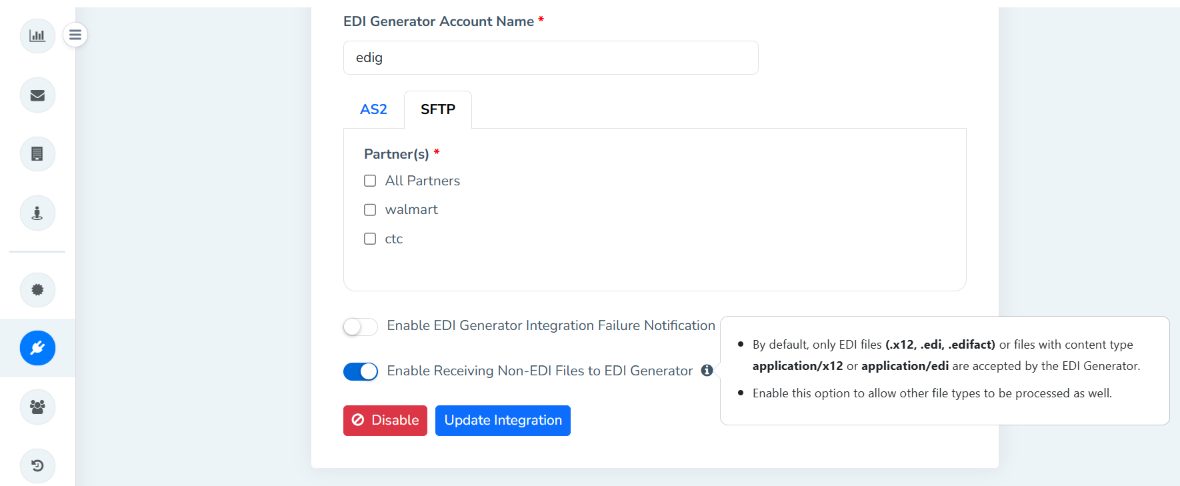
For users leveraging the EDI Generator integration, MFT Gateway now provides the ability to enable receiving non-.edi files directly from the web app. This gives teams more flexibility when trading partners send mixed file types, without needing to route those files through a separate process.
A new REST API endpoint has been introduced to add an SFTP partner to a webhook integration. This makes it possible to fully automate SFTP partner onboarding for webhook-based workflows, reducing manual setup steps for teams managing partners at scale.
| Method: | POST | ||
| Endpoint: | https://api.mftgateway.com/partner/:identifier/webhook | ||
| Mandatory Headers: | Authorization - Authorization header with auth token | ||
| Mandatory Path variable: | identifier - Partner identifier (String) Use the value “all” to enable webhook integration for all SFTP partners. |
||
| Mandatory Query Parameters: | service - sftp (String) | ||
| Mandatory fields: | webhookUrl - The endpoint URL where webhook notifications will be sent (String) | ||
| Optional fields: | replaceIfExists - Replace an existing webhook configuration if one already exists for the same partner (Boolean | Default: false) activateIfDisabled - Reactivate an existing webhook configuration if it is currently disabled (Boolean |
Default: false). This option only takes effect when replaceIfExists is set to true. |
Finding the right messages just got easier. MFT Gateway now includes an MDN Status filter for received and sent AS2 message lists, allowing users to quickly narrow down messages by their MDN status.
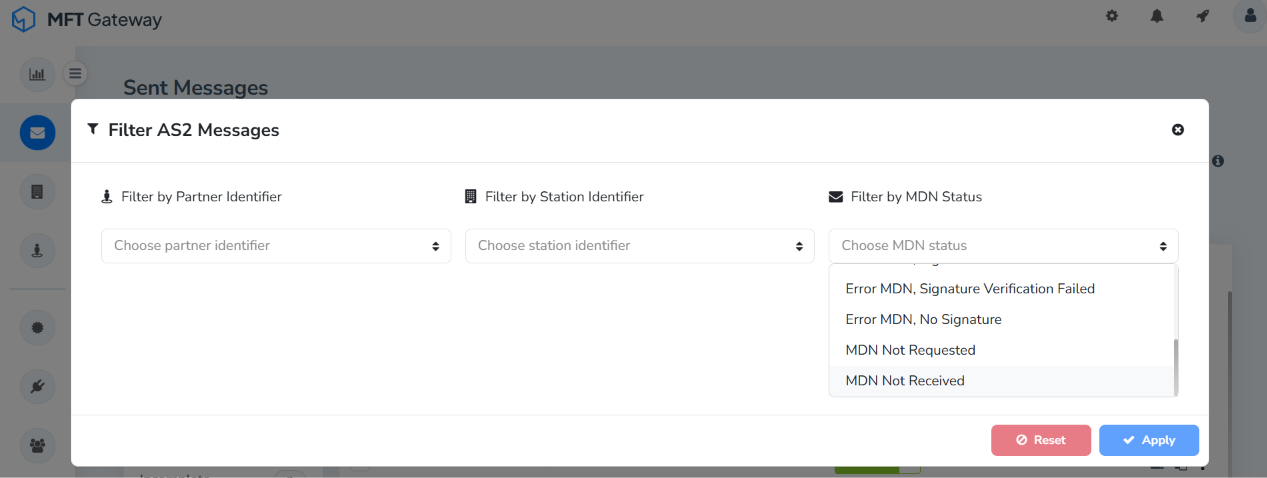
Filter search across the message list views has also been improved to support partial matching as the default setting, so users no longer need to enter exact terms or use wildcard search to find what they’re looking for.
With the latest update, certificate expiration email notifications will be triggered for certificates that are actively assigned/in use by a Station or Partner, cutting down on notification noise for certificates that aren’t actively in use.
The MFT Gateway Subscription page now displays additional charges alongside subscription plan details, giving users a clearer, more transparent view of their billing at a glance.
That wraps up the highlights of MFT Gateway 3.16.7. Together, these updates make it easier to automate certificate and partner management, give teams finer control over AS2 messaging, and streamline day-to-day monitoring, all while continuing to build on MFT Gateway’s serverless, AWS-native foundation.
Sign Up for a 30 day Free Trial! Stay tuned for more updates!
Get full access to whichever product fits your needs. Configure real trading partner connections, run end-to-end transactions, and see the platform perform before making any commitment. All three products include a free 30-day trial with no restrictions.