









![Open-Source Transfer vs Managed File Transfer [Updated 2026]](/assets/images/blog/open-source-transfer-vs-managed-file-transfer.png)




Hosted SaaS solution for AS2 and SFTP file transfer. No infrastructure, instant setup.
Start Free Trial
Learn how to establish a secure AS2 EDI connection with this step-by-step guide. Read our blog to discover how to set up an AS2 and EDI connection using MFT Gateway and EDI Generator.

Hirudinee Liyanage
Modified: 13 Aug 2026

To set up an AS2 EDI connection, create an Aayu account with EDI processing enabled, configure your AS2 station and partner on MFT Gateway, enable the S3 and EDI Generator integrations, then verify the connection from the EDI Generator side. Once verified, EDI files received over AS2 land directly in your EDI Generator inbox, ready for interpretation and response generation.
Aayu Technologies currently offers three main products: MFT Gateway, AS2 Gateway, and EDI Generator. Each product is designed to cater to specific business needs, and understanding the differences between them can help you decide which combination of tools is right for your organization:
If your organization does not use EDI files and only needs a medium to transfer business documents over AS2 or SFTP protocols, you only need an account with either MFT Gateway (which supports AS2 and SFTP) or AS2 Gateway (supports only AS2). Your choice should depend on factors such as file sizes, transaction frequency, preference for cloud-based or server solutions, and your budget. It’s worth taking the time to evaluate these factors carefully, since the right fit can make a noticeable difference in cost efficiency and ease of long-term maintenance.
Important: You do not need accounts in both products. Select the one that best suits your requirements and proceed with it. Reach out to our team and we are happy to help you choose between the two products.
In this case, you will only need either an MFT Gateway or AS2 Gateway account. Both gateways offer multiple integrations, such as S3, SFTP, Webhook, or API, allowing you to automate the file transfer process and integrate it with your current system. This means your existing EDI infrastructure can continue operating exactly as it does today, with the gateway simply acting as the secure conduit that moves files in and out on your behalf.
In this scenario, you will need an EDI Generator account along with either an MFT Gateway or AS2 Gateway account. This setup allows the EDI files received by the MFT Gateway or AS2 Gateway to be interpreted, and response EDI files to be generated and sent out. Together, these two products form a complete end-to-end pipeline, covering everything from secure transmission to document interpretation and response generation, so you don’t need to piece together separate tools from different vendors.
If you require both AS2 and EDI capabilities, follow the steps described in the article to integrate the two Aayu products so that the MFT gateway can receive and send files over AS2, while EDI Generator interprets and generates EDI files for you. Taking this integrated approach ensures a smoother workflow overall, reduces the chances of manual errors, and gives you a single, cohesive system for managing both your file transfers and your EDI processing needs.
1.1 I’m Completely New and Do Not Have an Aayu Account Navigate to the Create Account page of Aayu and follow the steps to create an account. Make sure to check the “I need EDI processing over AS2” box in the first step. This will create both MFT Gateway and EDI Generator accounts. You can use the same login credentials for all accounts.
1.2 I Already Have an MFT Gateway Account If you already have an MFT Gateway account, navigate to the EDI Generator login page, enter your MFT Gateway credentials, and click on the login button. If you do not have an EDI Generator account, one will be created at that time.
Once your MFT Gateway and EDI Generator accounts are created, you need to establish the AS2 connection with your partner. Please refer to our blog on setting up an AS2 connection. If you are just starting and do not have partner details yet, you can use our Mock Station/ Partner to proceed with the setup.
First log in to your MFT Gateway account, navigate to Integrations → S3, and click on the Enable S3 button.
A CSV file named AccessKeys.csv will be downloaded upon successfully enabling S3. This file contains the Access key ID and Secret access key needed for later steps.
Once AS2 Station and Partner are configured on MFT Gateway, navigate to Integrations → EDI Generator.
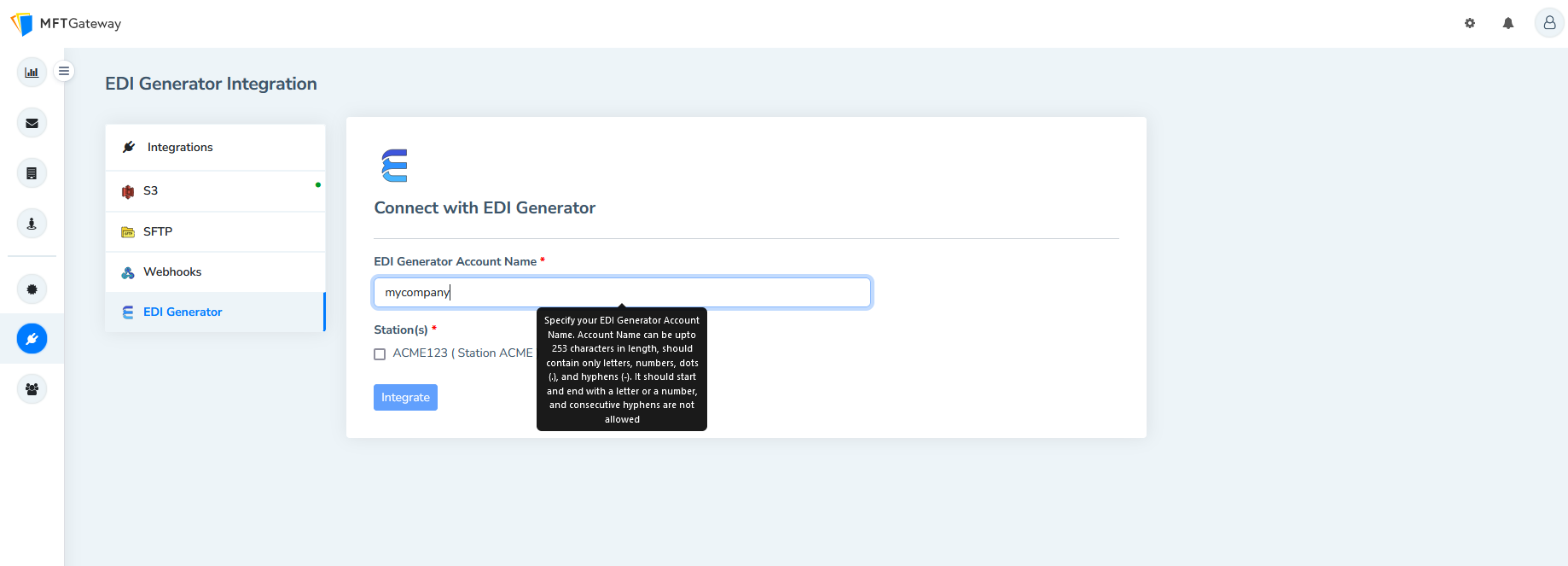
The EDI Generator account name should match the Account ID of your MFT Gateway account. Select your AS2 station(s) and/or SFTP partners and click on the Integrate button. Upon successful integration, details will be displayed on the EDI Generator Integration page for use in later steps.
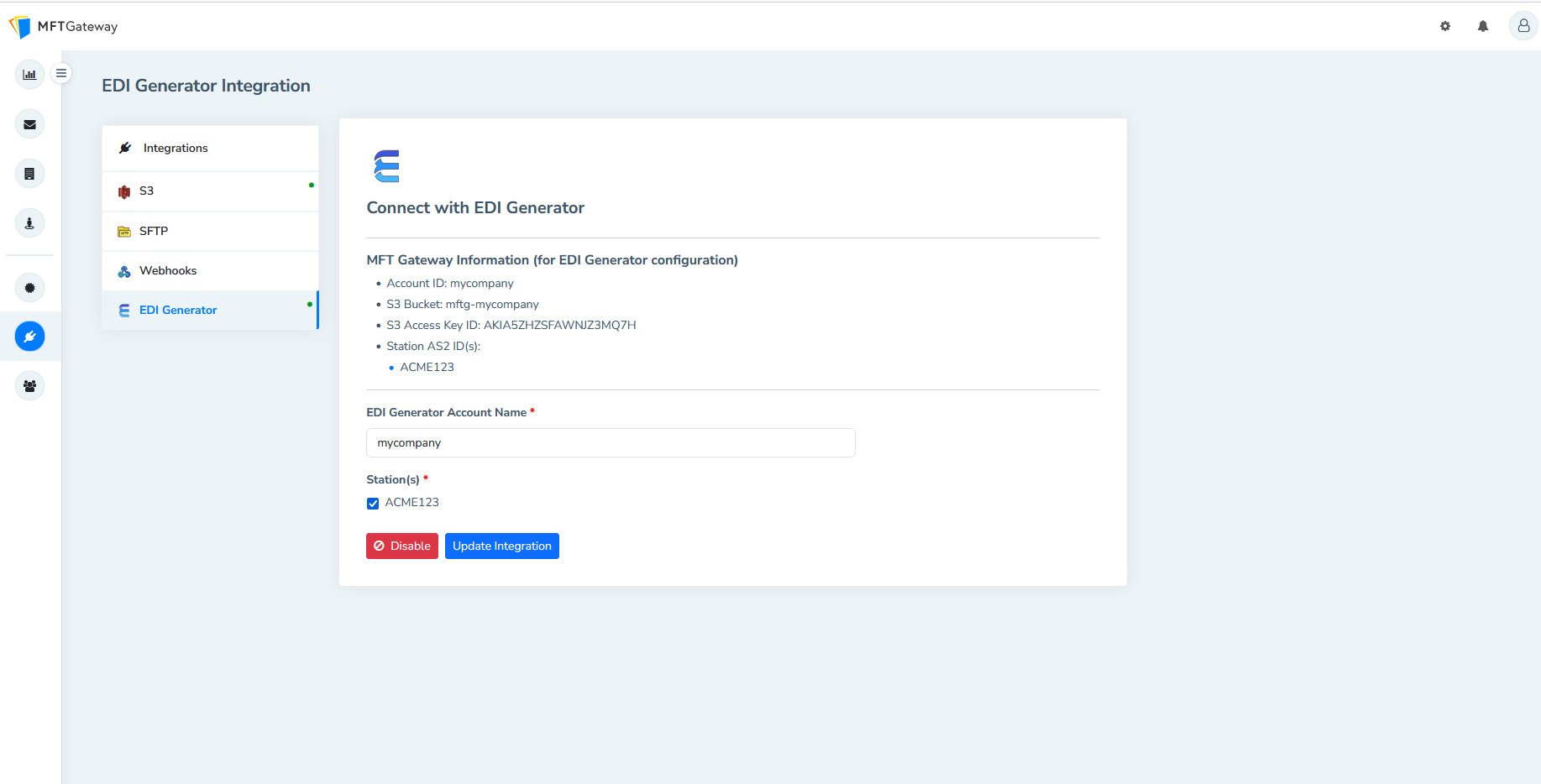
Click on the Export button on the EDI Integration page to export all the details needed for the EDI Generator side.
Log in to your EDI Generator account and navigate to Administration → Organization. On this page, enter the details under MFT Gateway Integration, or click on the Upload Configuration button to import the exported file from MFTG:
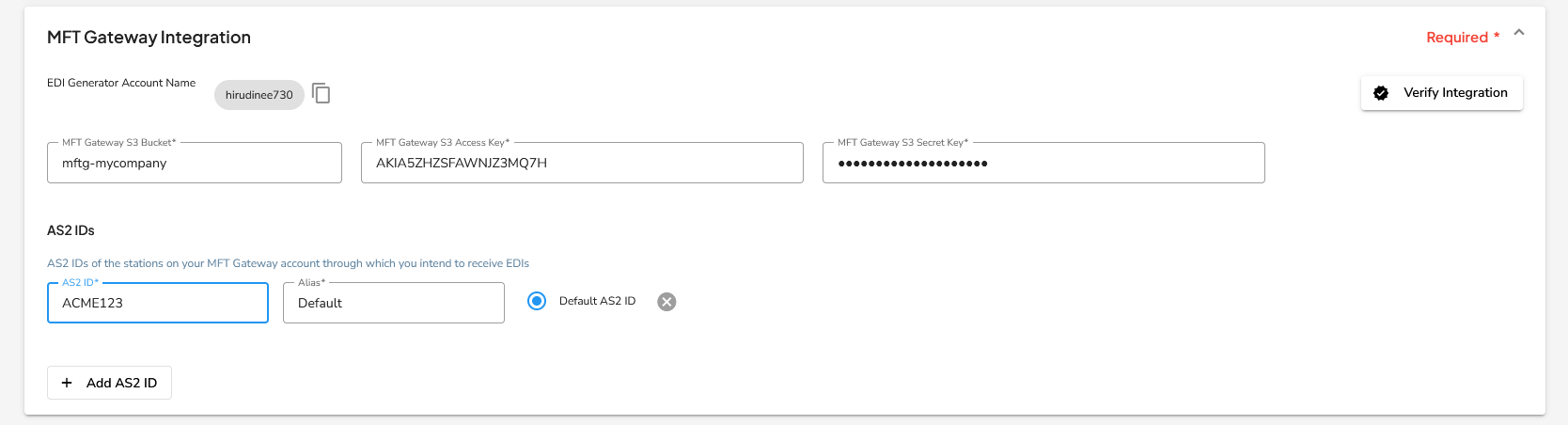
MFT Gateway S3 Bucket: S3 Bucket name from the integration details(3.2 image). MFT Gateway S3 Access Key: S3 Access Key ID from the integration details(3.2 image). MFT Gateway S3 Secret Key: Secret access key from the AccessKeys.csv file.
Ensure that the EDI Generator Account Name under MFT Gateway Integration matches the name given in Step 2. If they differ, update the name on the MFT Gateway side.
Fill in all the details under MFT Gateway Integration and click the Verify Integration icon. A successful verification popup should appear if everything is correctly configured.
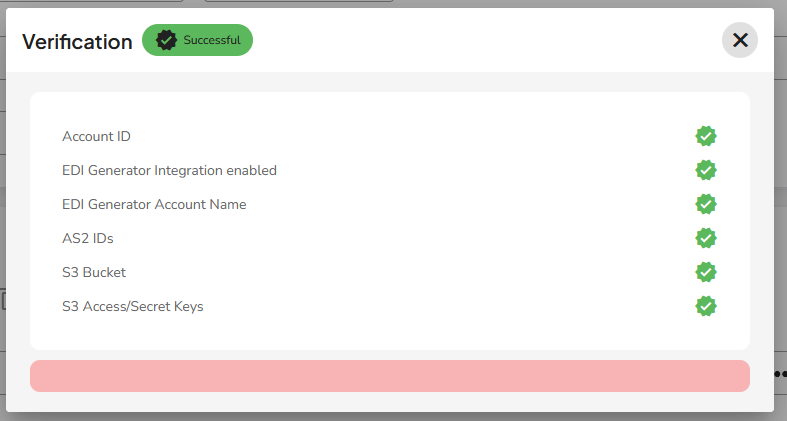
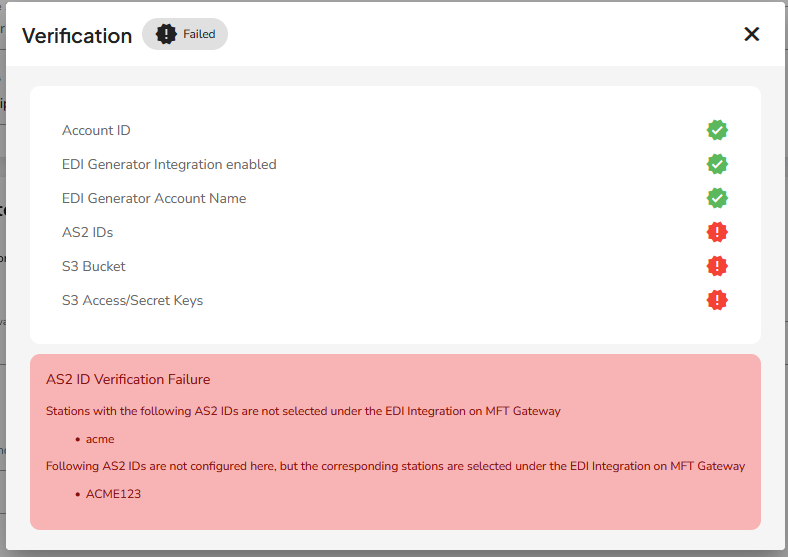
If verification fails, double-check the red colored fields on the verification pop-up. The following popup indicates issues of AS2 IDs, S3 bucket, and S3 Access/Secret Keys.
After successfully verifying the MFT Gateway Integration, complete the Address Line 1 and ISA and GS Identification details. If you are unsure about the ISA ID Qualifier, keep the default ZZ and use an ID that represents your company for the ISA Identifier and GS Code. You can use the same value for both fields.
Once these steps are completed, EDI files received by MFT Gateway via AS2 protocol will be added to the EDI Generator’s inbox.
No. You only need one gateway account. MFT Gateway supports both AS2 and SFTP, while AS2 Gateway supports AS2 only. Choose based on file sizes, transaction volume, and whether you prefer a cloud SaaS or dedicated deployment, then pair it with EDI Generator if you also need EDI interpretation and response generation.
Yes. Aayu provides a Mock Station and Partner so you can complete the full setup and send test messages before you have real partner details. Once your partner shares their AS2 ID, URL, and certificate, you replace the mock configuration with production values without redoing the integration.
Keep the default ZZ (mutually defined) qualifier and choose an identifier that represents your company for both the ISA Identifier and GS Code. You can use the same value for both fields. If a trading partner later mandates a specific qualifier such as 01 (DUNS), update it in the Organization settings.
The most common causes are mismatched AS2 IDs, an incorrect S3 bucket name, or wrong S3 access and secret keys. The verification popup highlights failing fields in red. Also confirm the EDI Generator account name exactly matches your MFT Gateway Account ID; a mismatch there blocks the integration.
From the EDI Generator side, you’ll also need to create a partner and set up EDI definitions so EDI Generator can understand incoming EDI files and generate responses. Our dedicated EDI support team can help you throughout this process, from signup to your first production transaction.
Join hundreds of organizations already taking full control of their B2B AS2 communications with our trusted solutions. Contact us today to tailor a solution that fits your specific AS2 EDI needs.
Get full access to whichever product fits your needs. Configure real trading partner connections, run end-to-end transactions, and see the platform perform before making any commitment. All three products include a free 30-day trial with no restrictions.